Contacts holds everyone your agents found or you imported. Views, filters and lists help you find the right people.
What you need: contacts in Looply. → Learn more: Import contacts
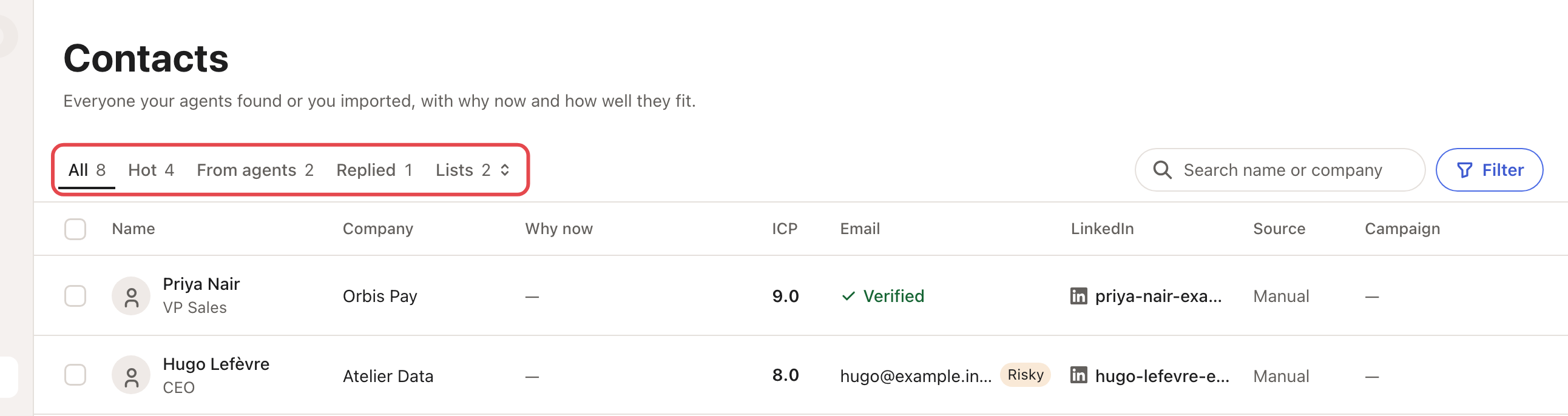
Step 1: Pick a view
| Tab | Who it shows |
|---|---|
| All | Every contact of the brand. |
| Hot | Contacts with an ICP score of 8 or more. Your agents score the people they find. |
| From agents | People your buying-signals agents found. |
| Replied | People who answered one of your campaigns, by email or on LinkedIn. |
On a phone, From agents is in Filter, under Agent.
Step 2: Search and filter
Type in Search name or company, or click Filter. You can narrow by source (such as CSV import), by field (such as Has email) or by country. Click a country once to keep it (In), twice to leave it out (Out).
Each filter shows as a chip. Click a chip to remove it, or Clear all.
Step 3: Make a list
- Click Lists, then All lists.
- Click Create list, type a List name and click Create.
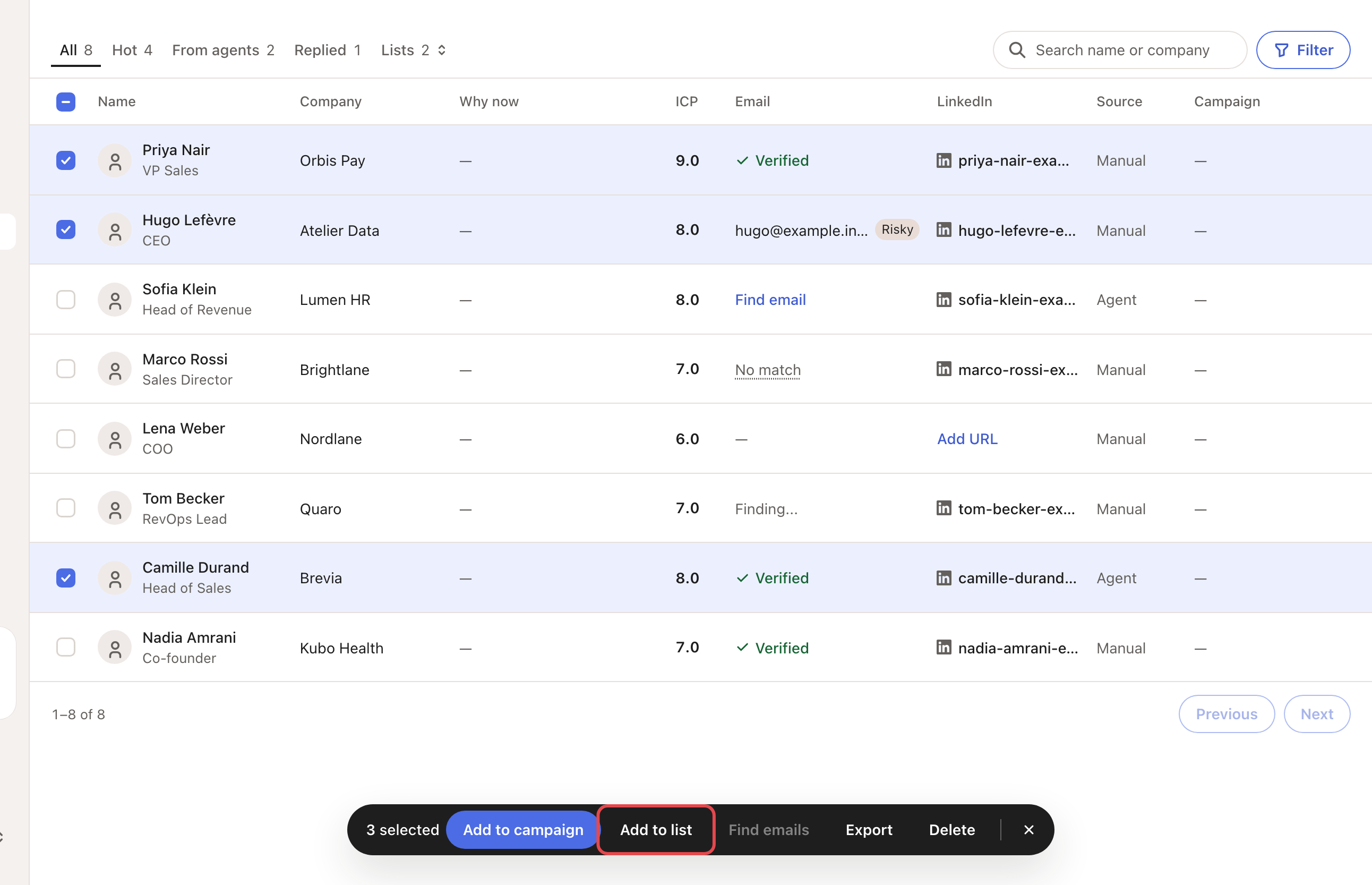
- Back in a view, tick contacts. In the bar at the bottom, click Add to list and pick the list.
Inside a list, Move takes the ticked contacts to another list.
Lists you create are Manual: you can rename and delete them. Your agents fill Automatic lists, which you can't rename or delete.
Step 4: Open a contact's page
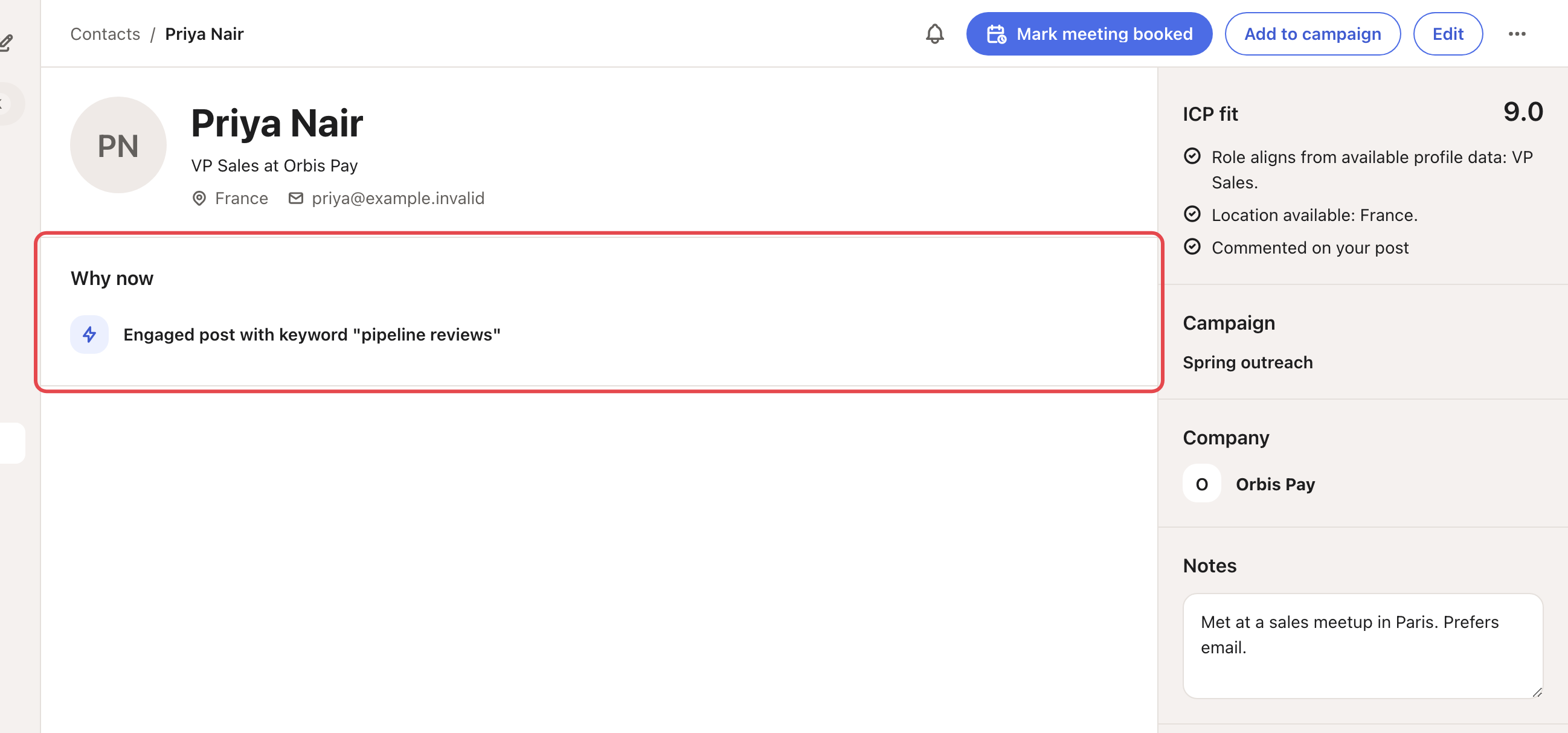
Click a contact's row. Their page shows:
- Why now: their latest signal;
- Conversation: your latest email thread, with Open in Inbox;
- ICP fit: their score and the reasons;
- Campaign, Company and Notes. Notes save when you click elsewhere.
From there you can add them to a campaign, edit them or mark a meeting booked.
Rename or delete a list
Open the list and click ⋯ next to its name.
- Rename list: type the new name and click Save.
- Delete list: choose Delete list only to keep the contacts, or Delete contacts and list. Contacts that are also in another list or a campaign are always kept.
If something goes wrong
| What you see | Why | What to do |
|---|---|---|
| "Create a manual list first." | Add to list offers manual lists only. | Create one (Step 3). |
| "… selected automatic lists could not be deleted." | Agents fill automatic lists. | Delete the contacts you don't need instead. |
| "… skipped (already in it or no LinkedIn URL)." | Add to campaign needs a LinkedIn URL. | Add their LinkedIn URL, then try again. |
| Someone you added to a campaign never gets a message | Their email address is on your Blocklist, so they stay paused. | See Your Blocklist. |
| No contacts found | Nobody matches your search or filters. | Click Clear filters. |
Frequently asked questions
Can I tick contacts on my phone? No. Ticking contacts and the bar at the bottom work on a computer only.
Related articles: Find emails · Export contacts · Create a campaign