Download any of your contacts as a CSV file. Or connect your CRM and send them there.
What you need: a paid plan. Export is locked during the free trial.
Step 1: Select the contacts
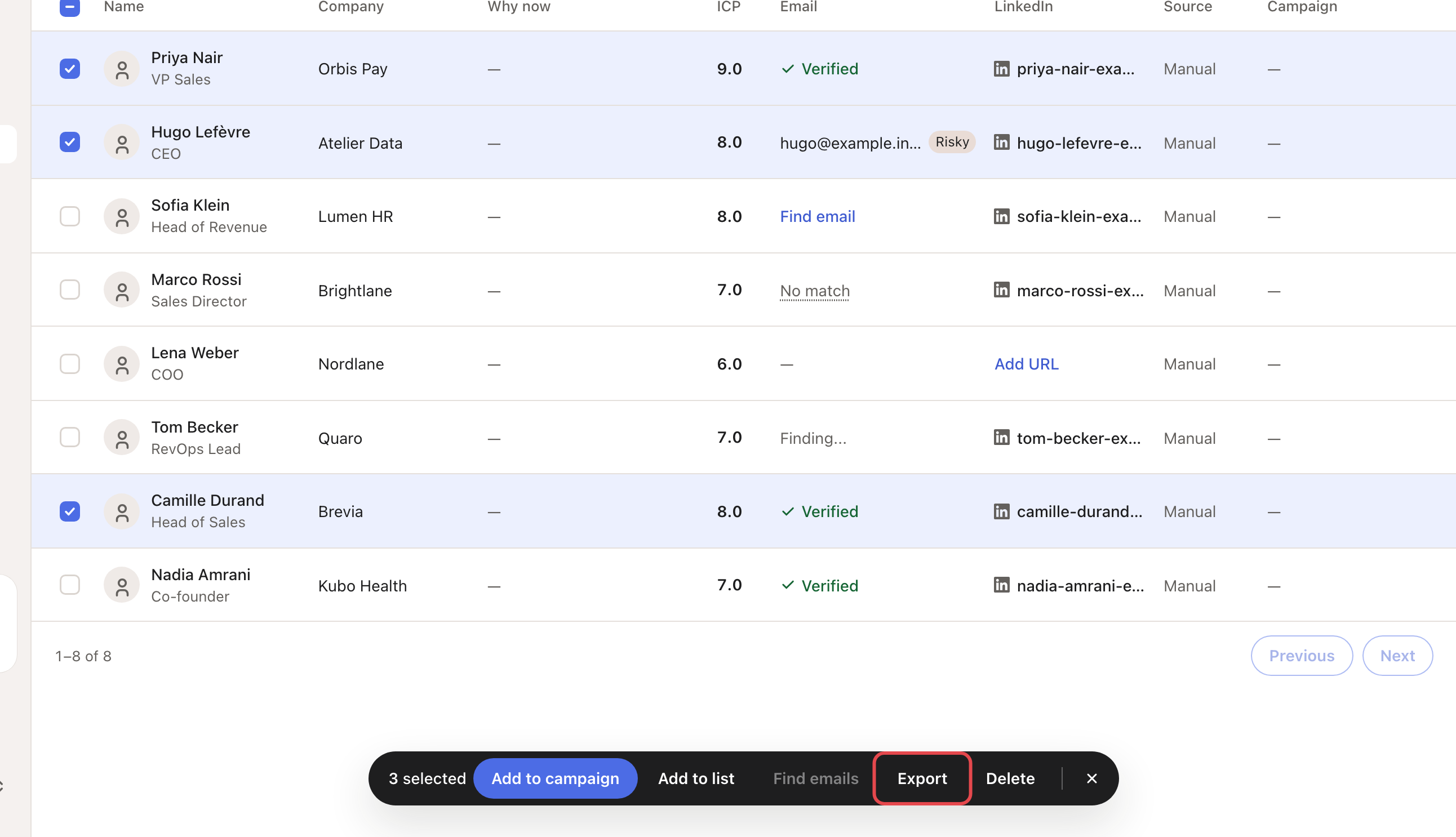
Go to Contacts, or open one of your lists. Tick the contacts you want.
To take everyone, tick the box at the top of the table. Then click Select all with the total, for example Select all 240.
Step 2: Click Export
In the selection bar, click Export.
Step 3: Choose what to export
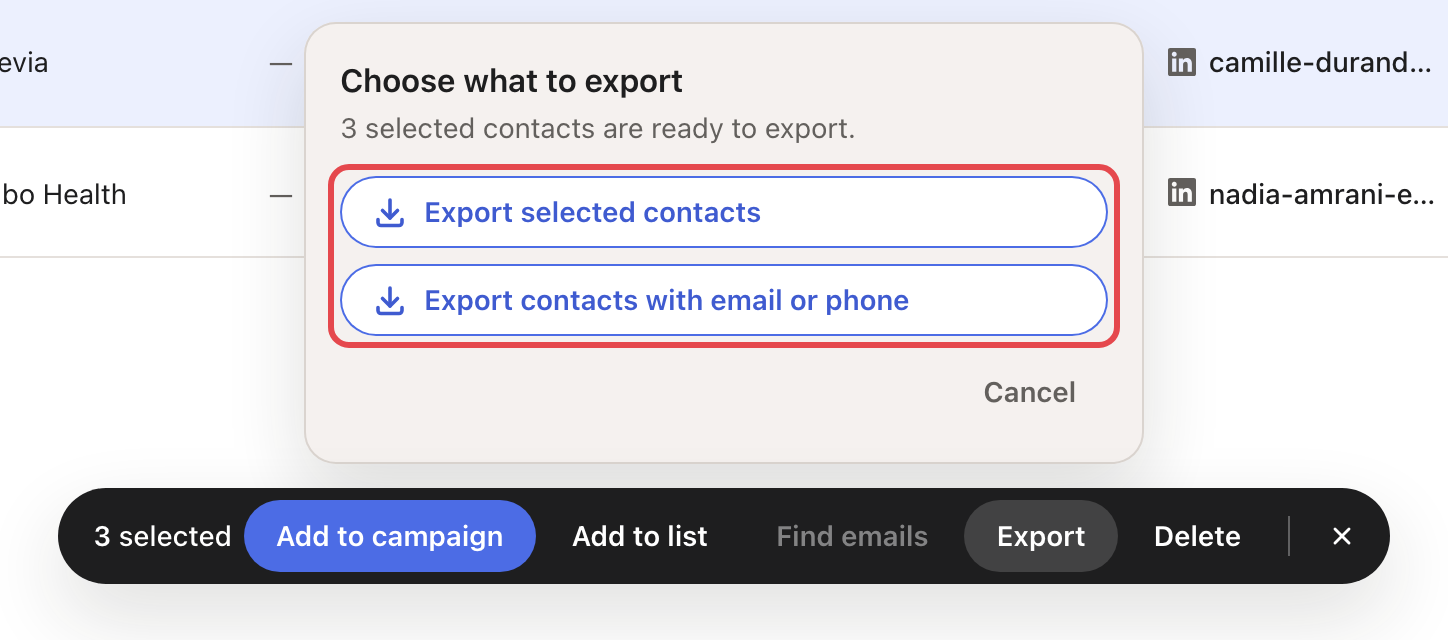
Under Choose what to export, pick one:
- Export selected contacts: everyone you selected.
- Export contacts with email or phone: only the selected people who have an email or a phone number.
Looply downloads a file named selected-contacts_ and the date, for example selected-contacts_2026-11-09.csv.
What's in the file
One row per contact, with these columns:
| Columns | What they hold |
|---|---|
| First Name, Last Name, Email, Phone | The person and how to reach them. |
| Location, Job Title, Industry | Their profile. |
| Company, Company URL, Website | Their company. |
| Profile URL | Their LinkedIn URL. |
| Import Date, Source | When and how they came into Looply. |
| Intent, Intent Keyword | The signal they showed. |
| ICP Score | The fit label and its level out of 3, for example Hot (3/3). |
| Total Score | Their lead score. |
| Notes, Personalized Email Message, Personalized LinkedIn Message | Your notes, and the messages written for them. |
| Email 2, Email 3, Phone 2, Phone 3 | Always empty. |
During the free trial
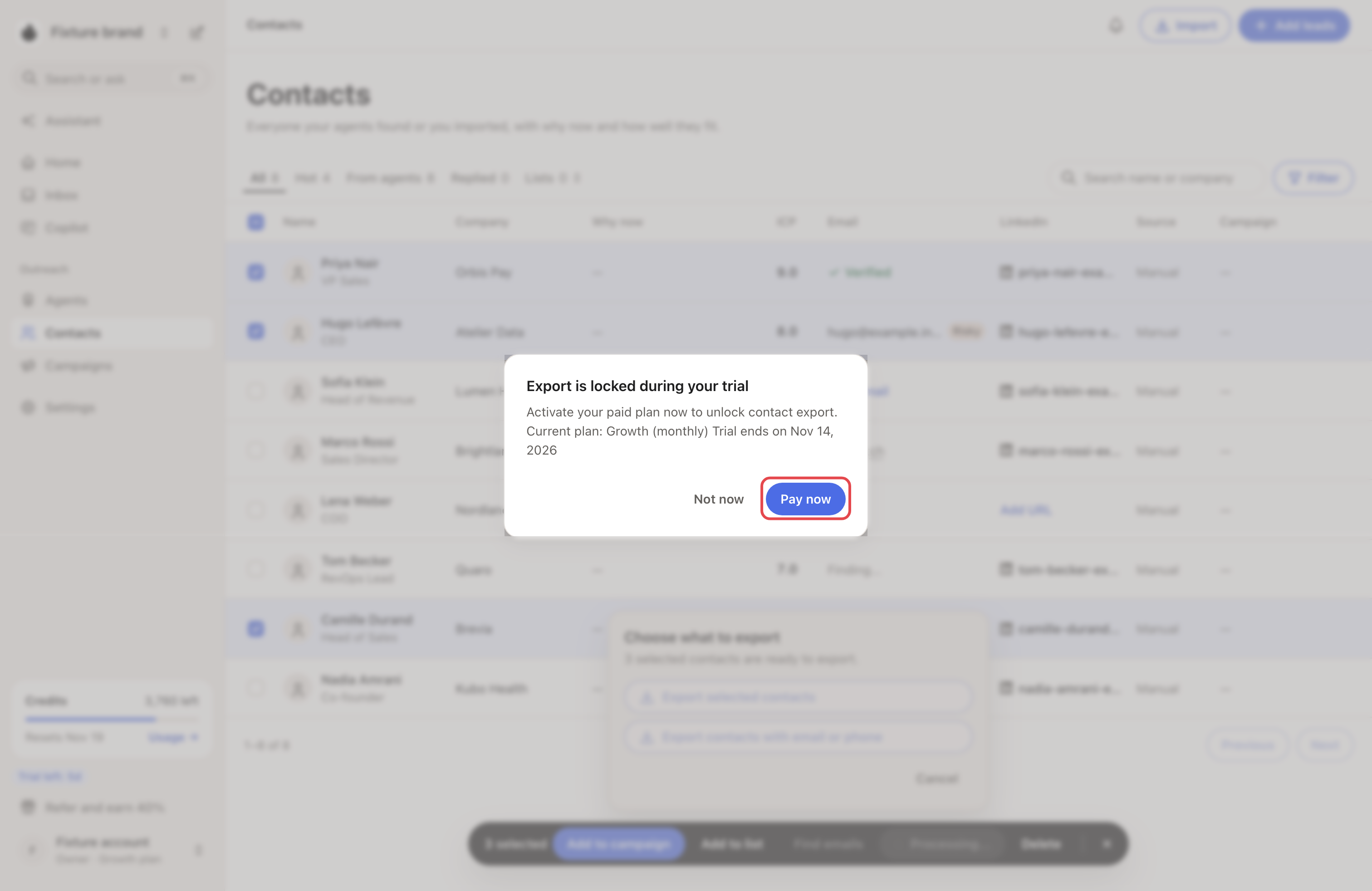
Export shows Export is locked during your trial.
- Not now keeps your trial. Nothing is exported.
- Pay now ends your trial and charges your card for your plan right away. Once the payment is confirmed, the export starts.
→ Learn more: Plans, trial and credits
Send contacts to your CRM instead
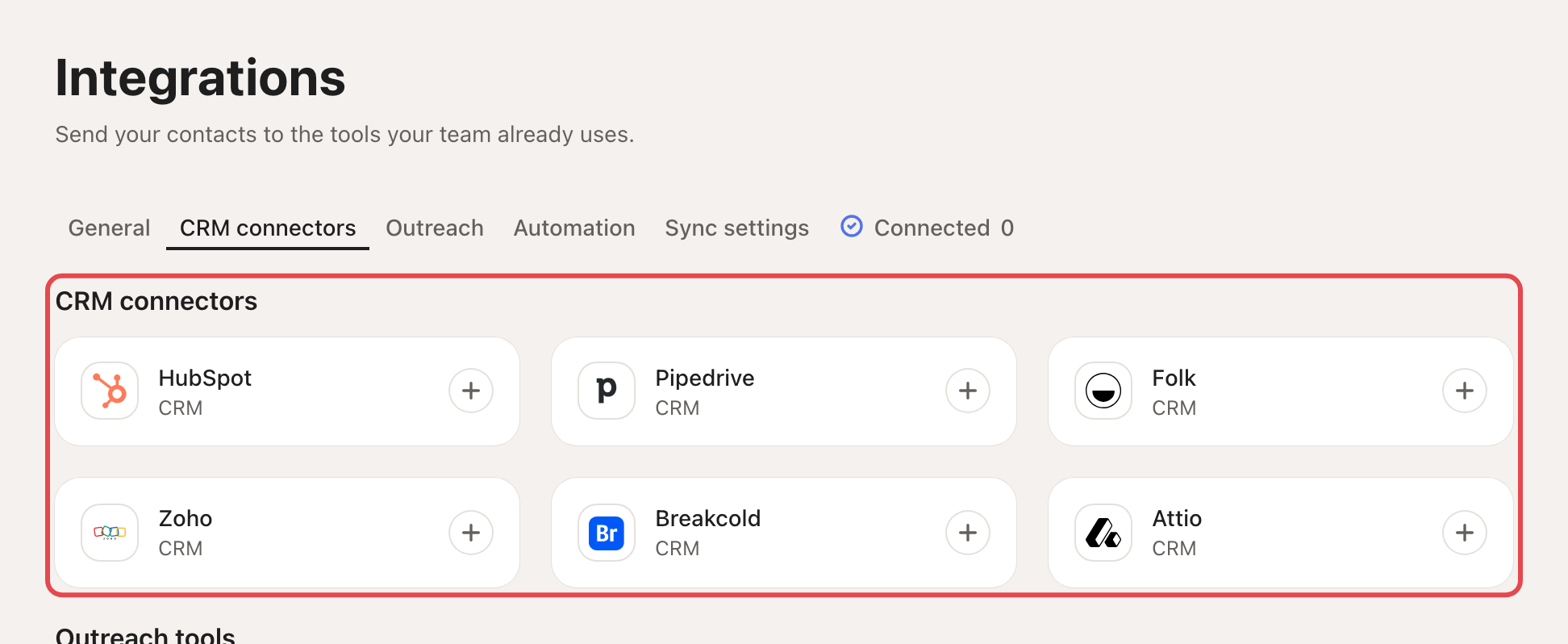
Go to Settings → Integrations. Under CRM connectors, Looply connects to HubSpot, Pipedrive, Folk, Zoho, Breakcold and Attio.
Click your CRM and connect it. Then:
- turn on its automatic sync, to send each new contact as it arrives, and
- click Sync existing contacts, to send the ones you already have.
If something goes wrong
| What you see | What to do |
|---|---|
| "None of the selected contacts currently have an email or phone to export." | Choose Export selected contacts instead. |
| "Failed to export selected contacts." | Try again. If it keeps failing, write to us from the chat. |
| "Payment confirmation is still syncing. Export is locked until billing confirms your paid plan." | Wait a moment, then click Retry. |