Import people from a CSV file or your LinkedIn connections. They go into your contacts and into a list.
What you need:
- a CSV file with a header row, where each person has an email or a LinkedIn URL
- or a connected LinkedIn account, to import your connections
Adding one person? On Contacts, click Add leads. Enter at least a name, an email or a LinkedIn URL, then click Add contact.
Step 1: Open the importer
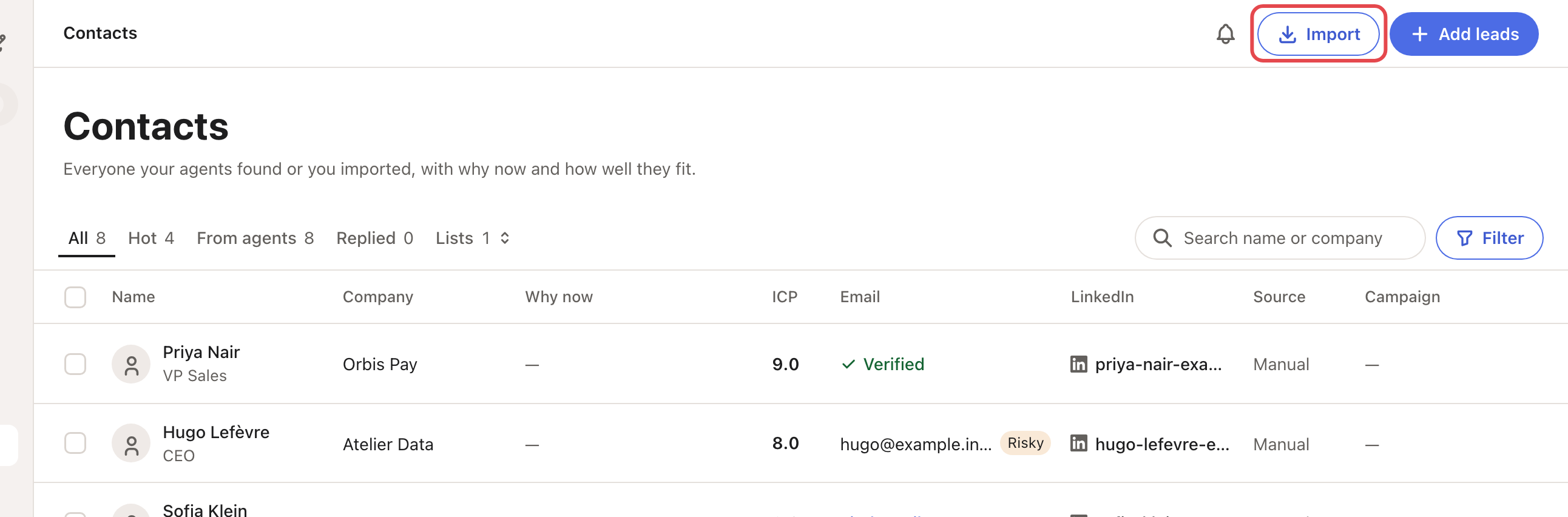
Go to Contacts and click Import. If Looply asks, pick the brand.
Step 2: Pick a source
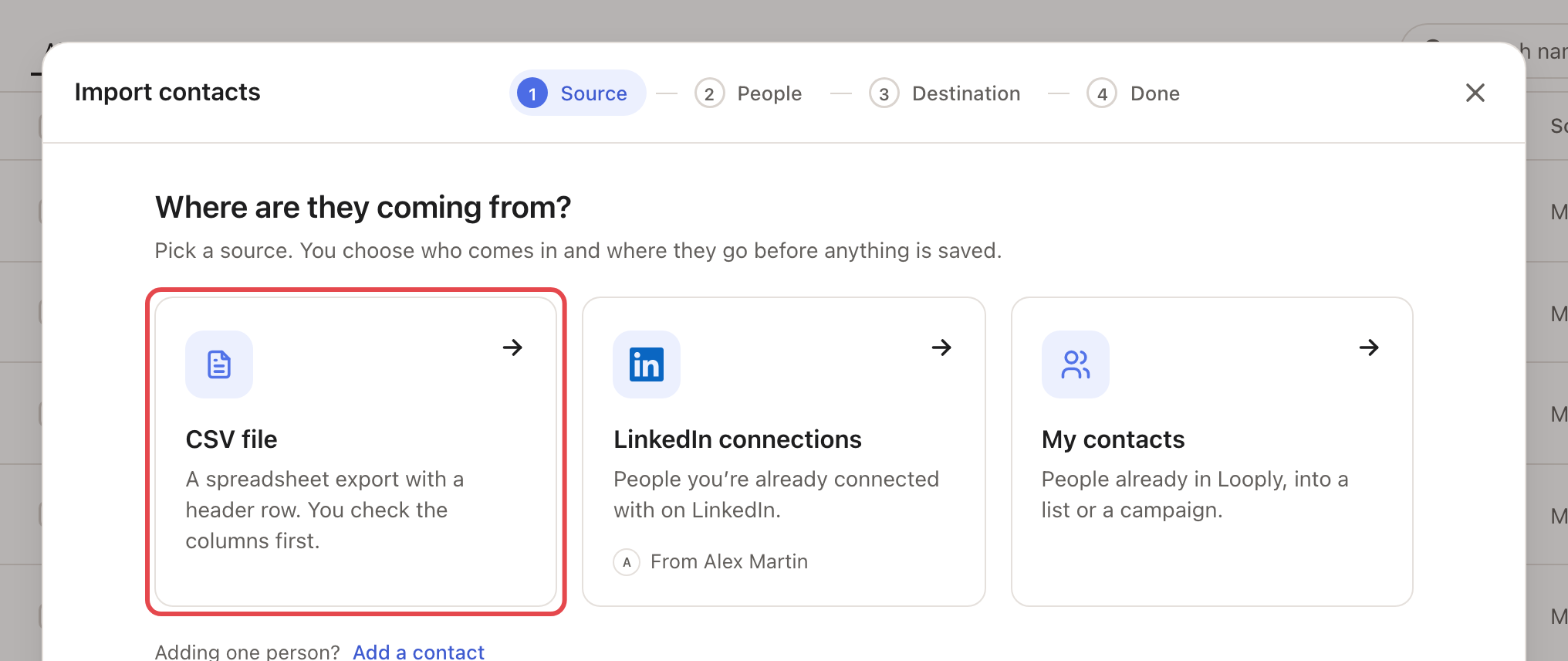
- CSV file: a spreadsheet saved as CSV.
- LinkedIn connections: people you are connected with on LinkedIn.
- My contacts: people already in Looply, to put into a list or a campaign.
Step 3: Check the columns, or pick the people
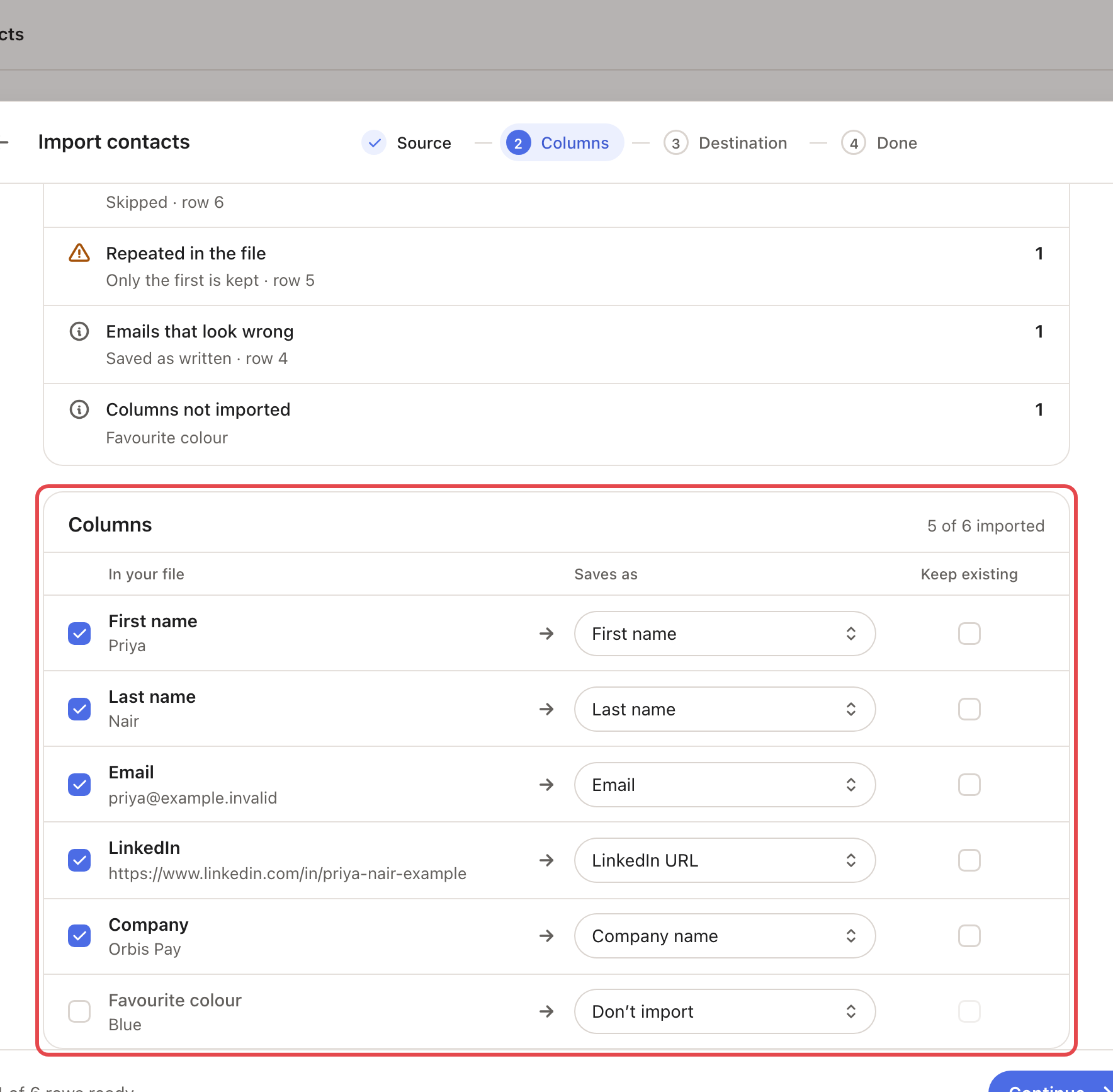
CSV file: drop the file or click Choose a file. Then, on Check the columns:
- Before you import says what will happen. Rows without an email or LinkedIn URL are skipped. For people Repeated in the file, only the first row is kept.
- Columns shows each column In your file and what it Saves as. Change the field, or pick Don’t import. Tick Keep existing on a column to protect what you already saved: Looply then only fills that field when it's empty.
LinkedIn connections or My contacts: tick the people. For LinkedIn, Not in contacts hides people you already have.
Click Continue.
Step 4: Choose where they go
Under List, pick New list or Existing list.
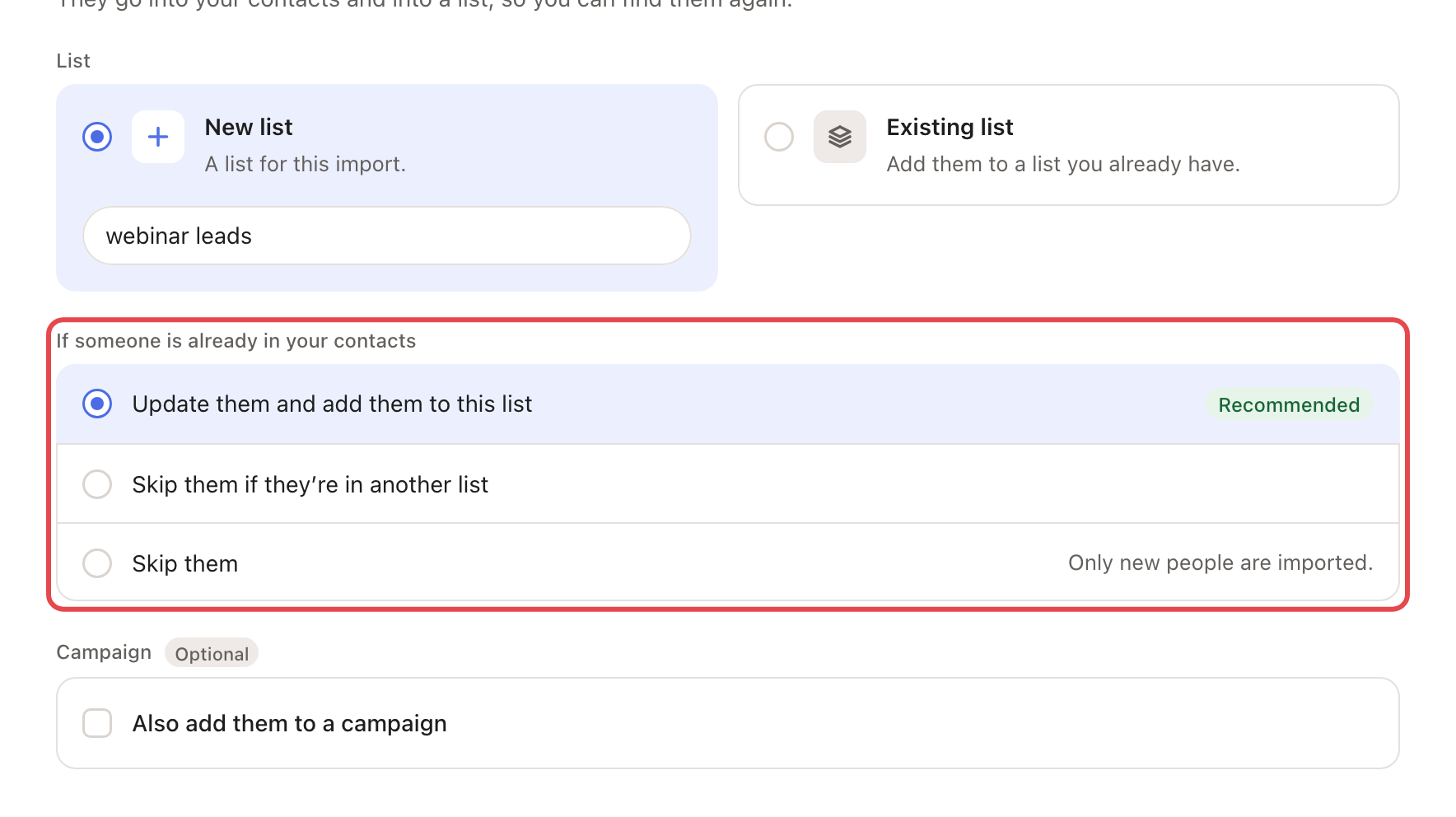
For a CSV file, choose If someone is already in your contacts:
- Update them and add them to this list (Recommended): they join the list, and Looply fills empty fields and replaces values that changed (except columns marked Keep existing).
- Skip them if they’re in another list
- Skip them: only new people are imported.
To add them to a campaign too, tick Also add them to a campaign. Only people with a LinkedIn URL can join it this way.
Click the import button, for example Import 120 rows.
Step 5: Check the result
Done shows what was imported and why rows were skipped. A CSV import keeps going if you close the window.
Good to know
- Looply matches people by LinkedIn URL, then by email. Nobody is saved twice.
- An empty cell never erases a saved value, and a saved LinkedIn URL is never replaced.
- People who engaged with a LinkedIn post come from a Run once agent. See Get everyone who engaged with a post or profile.
- To email a whole list, pick A contact list when you create a campaign.
If something goes wrong
| What you see | What to do |
|---|---|
| "That file isn’t a CSV." | Save the sheet as CSV in your spreadsheet app. |
| Pick the email or LinkedIn URL column | Set one column's Saves as to Email or LinkedIn URL. |
| No LinkedIn account connected | See Connect your LinkedIn account. |
| The import didn’t go through | Click Try again. People already saved are not added twice. |