Looply tells you about new replies while it's open, and about other events in the app or by email. You choose which ones reach you.
New-reply alerts
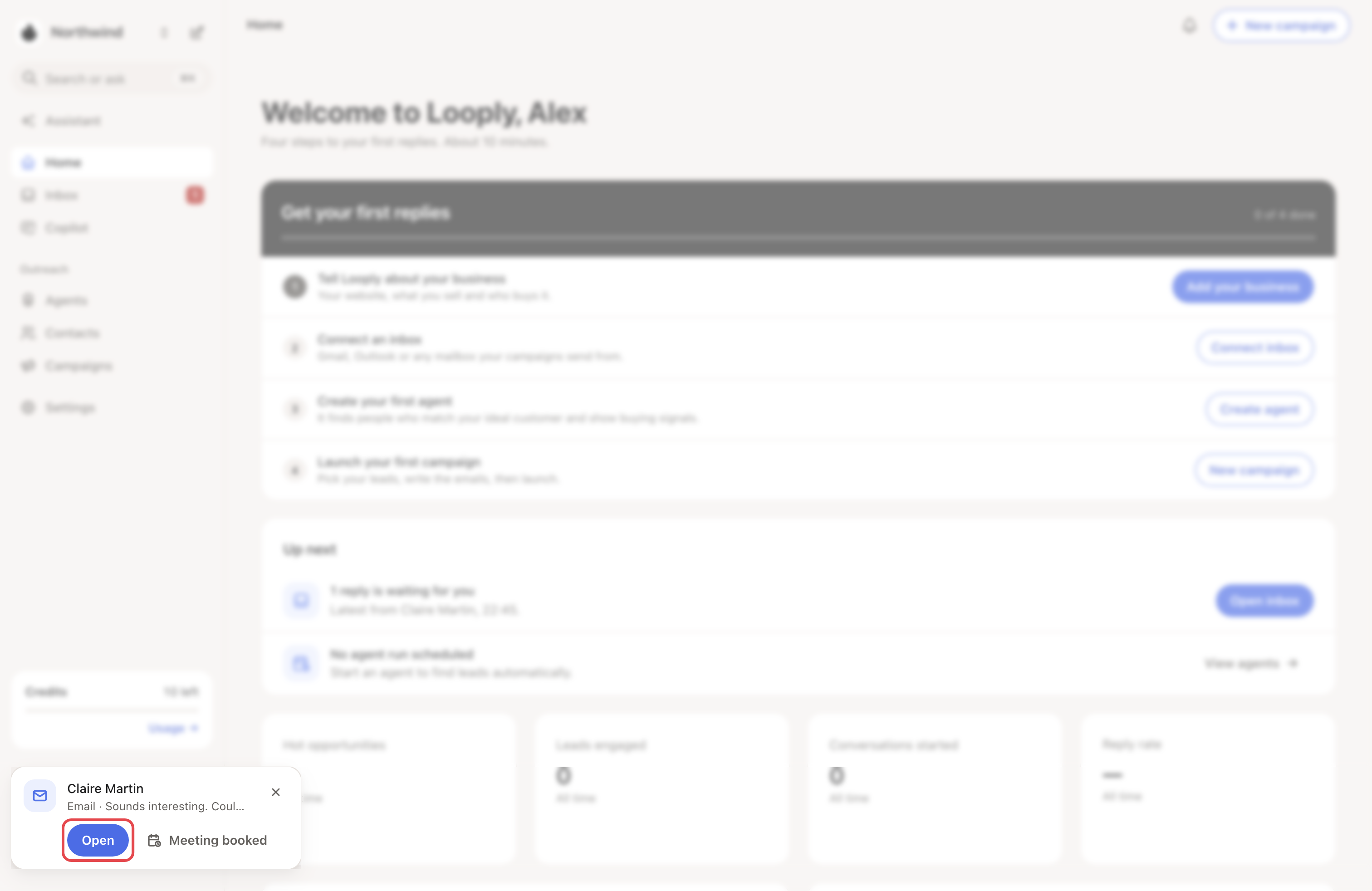
While Looply is open, a card pops up for each new reply in Primary: email replies, and LinkedIn replies to your campaigns. It shows at the bottom left, or at the top on a phone.
- The card shows who wrote, the channel and the start of the message.
- Open opens the conversation in Inbox.
- Meeting booked marks a meeting booked with them. → Learn more: Mark a meeting booked
- Up to 3 cards show at once. Each stays about 8 seconds, longer while your mouse is on it.
No card shows for the conversation you're reading. Nothing pops up while Looply is closed.
The sound
A sound plays with each card. To turn it off, go to Settings → Preferences and switch off Sound for new replies. Your browser only plays it once you've clicked or typed in the Looply tab.
Choose your notifications
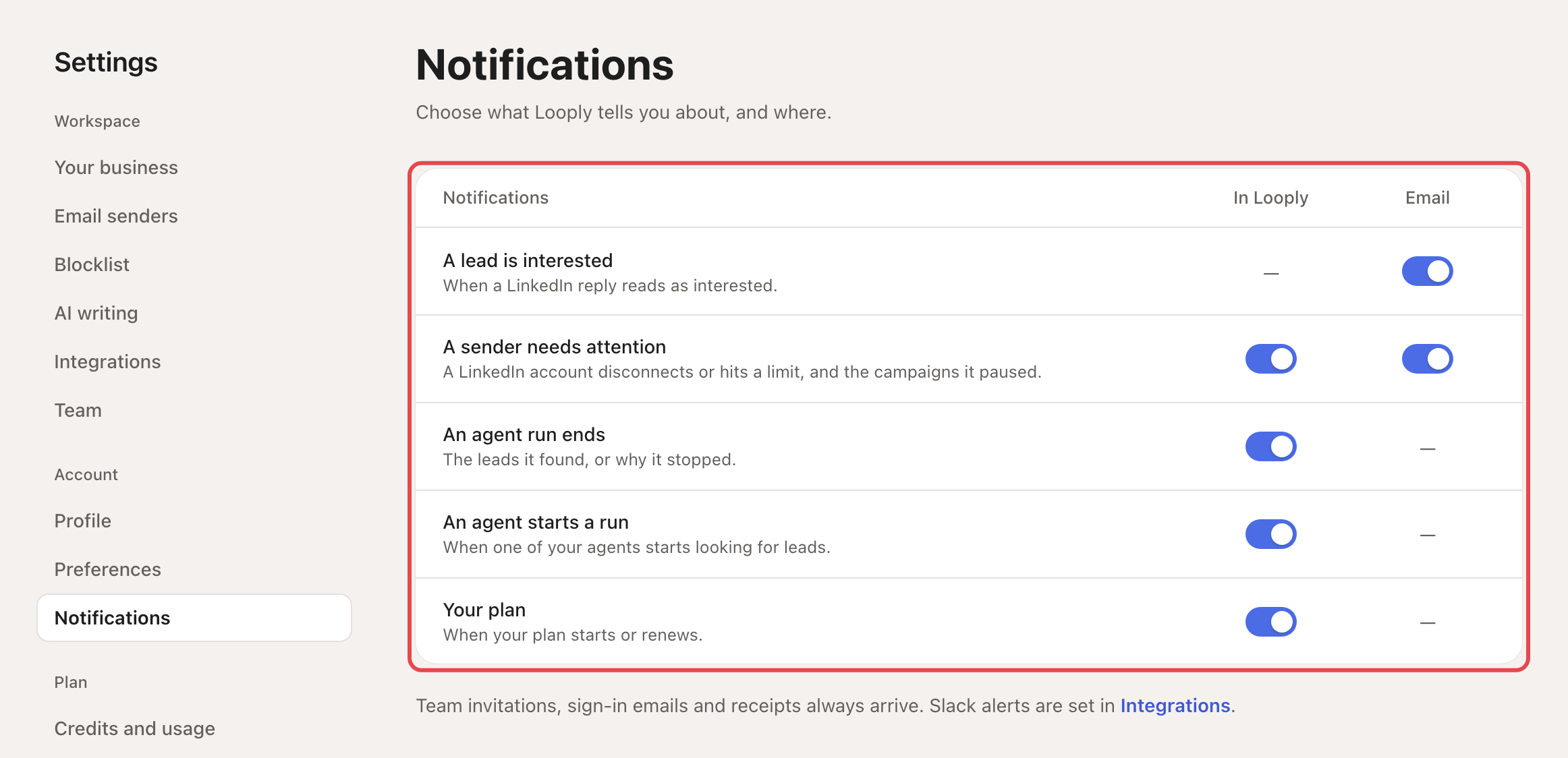
Go to Settings → Notifications. Each switch saves at once. Everything is on until you turn it off.
| Notification | In Looply | |
|---|---|---|
| A lead is interested: a LinkedIn reply reads as interested. | — | Yes |
| A sender needs attention: a LinkedIn account disconnects or hits a limit, and the campaigns it paused. | Yes | Yes |
| An agent run ends: the leads it found, or why it stopped. | Yes | — |
| An agent starts a run | Yes | — |
| Your plan: when your plan starts or renews. | Yes | — |
A dash means Looply doesn't send that one this way.
In Looply notifications are under the bell at the top right. Click one to open what it's about. Use Unread to see new ones, and Mark all as read.
Team invitations, sign-in emails and receipts always arrive. In a team, each person chooses their own notifications.
Alerts in Slack
Slack alerts have their own settings in Settings → Integrations. → Learn more: Connect your CRM and other tools
If something goes wrong
| What you see | Why | What to do |
|---|---|---|
| No card for a new reply | Looply wasn't open, you were reading that conversation, or the reply is in Others. | Check Inbox. |
| No sound | The sound is off, or you haven't clicked in the tab yet. | Turn on Sound for new replies, then click once in Looply. |
| "Could not save. Your previous choice is back." | The switch didn't save. | Try again. |
| "Your notification settings could not be loaded." | Looply couldn't read them. | Click Try again. |
Frequently asked questions
Do I get an email for every reply? No. Looply emails you when a LinkedIn reply reads as interested. Email replies land in your own inbox and in Looply's Inbox.
Related articles: Inbox · When someone replies · LinkedIn statuses and warnings