Overview
Looply can send your contacts to your CRM, an outreach tool, Clay, a webhook or Zapier. Slack gets no contacts: it posts Lead Reply Alerts. Each tool has a card in Settings → Integrations, and its sync settings are in the window it opens.
Using Looply from Claude or ChatGPT? See Use Looply from Claude or ChatGPT.
What you need:
- to be the workspace owner or an Admin;
- an API key or token from your tool (each window links to its help);
- the right brand open: a connection belongs to one brand.
The tools you can connect
| Tab | Tools | How you connect |
|---|---|---|
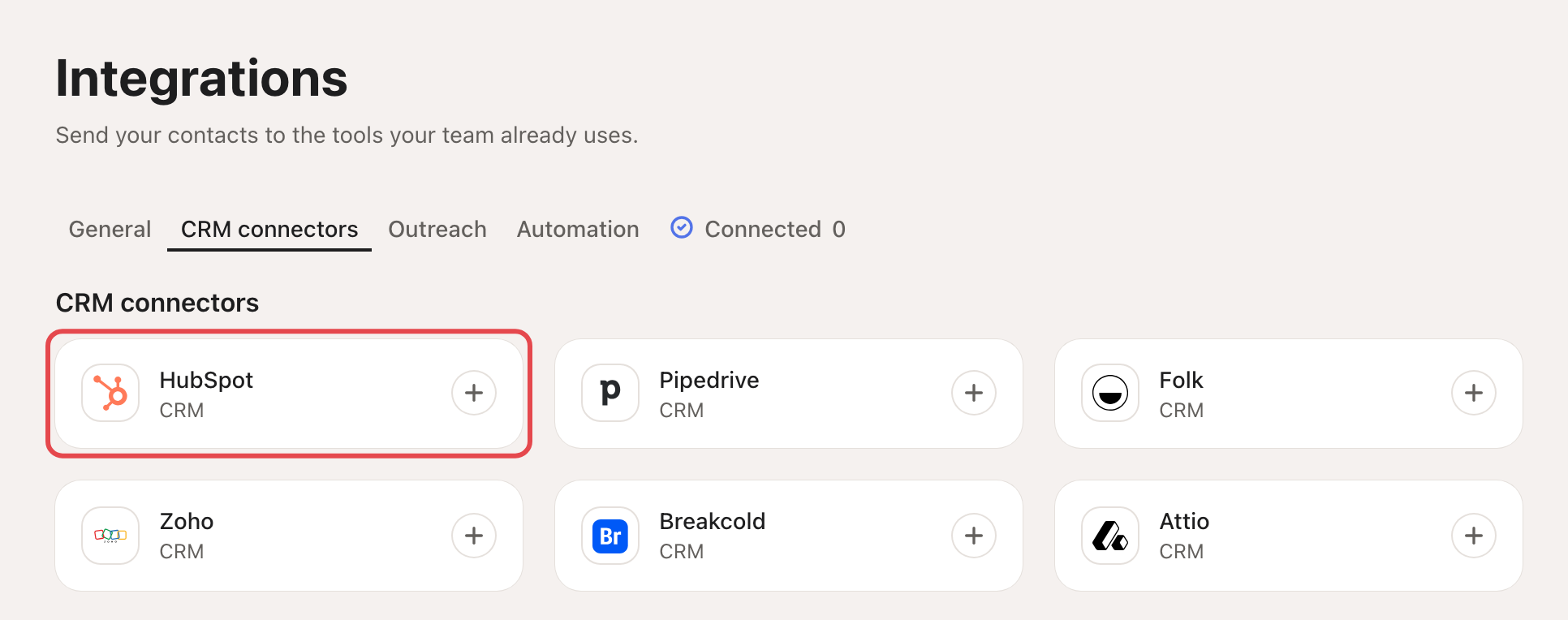
| CRM connectors | HubSpot, Pipedrive, Folk, Zoho, Breakcold, Attio | A token or API key. Zoho needs your own Zoho app (Client ID, Client Secret, Data Center Region). |
| Outreach | Instantly, Lemlist, SmartLead, SmartReach, HeyReach (only on accounts with LinkedIn) | An API key, then a campaign. |
| Automation | Slack, Clay, Webhook, Zapier | Slack sign-in, a Clay webhook URL, your webhook URLs, or a Zapier invite. |
Step 1: Open the tool's card
Go to Settings → Integrations and click the tool's card. A connected tool says Connected and also shows in the Connected tab.
Step 2: Enter your key
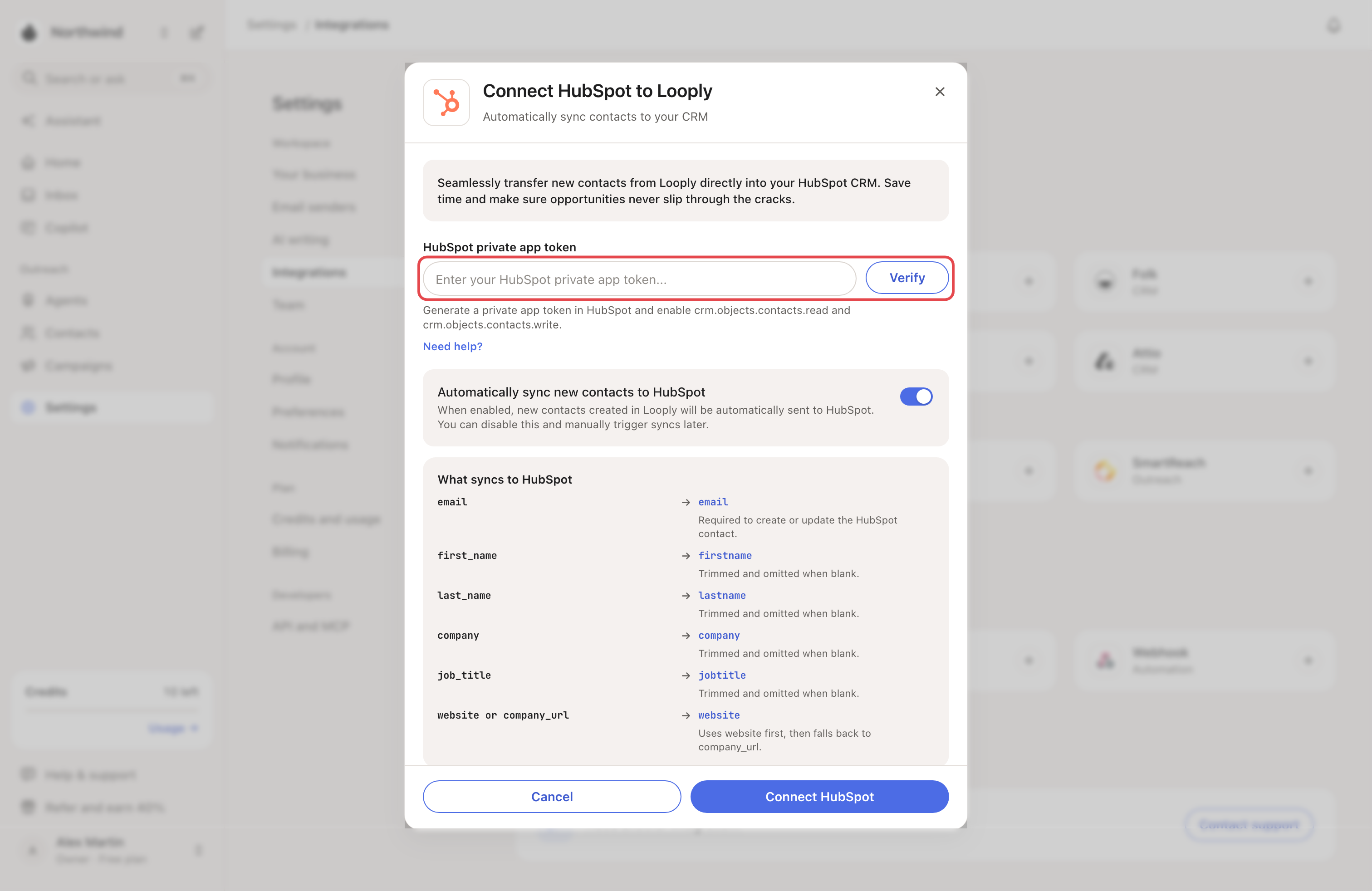
- HubSpot: paste a private app token with the
crm.objects.contacts.readandcrm.objects.contacts.writescopes. Click Verify, then Connect HubSpot. - Pipedrive: add your API token and workspace URL. Click Verify, then Connect Pipedrive.
- Folk, Attio, Breakcold: paste the API key, then click Connect Folk, Connect Attio or Save & Test Connection.
- Clay: paste your Clay webhook URL and click Connect Clay. Clay gets one real sample contact to map its columns.
Step 3: Pick a campaign (outreach tools)
For an outreach tool, click Connect with the tool's name. Choose a Default campaign from the list and click Finish setup.
Step 4: Choose what syncs
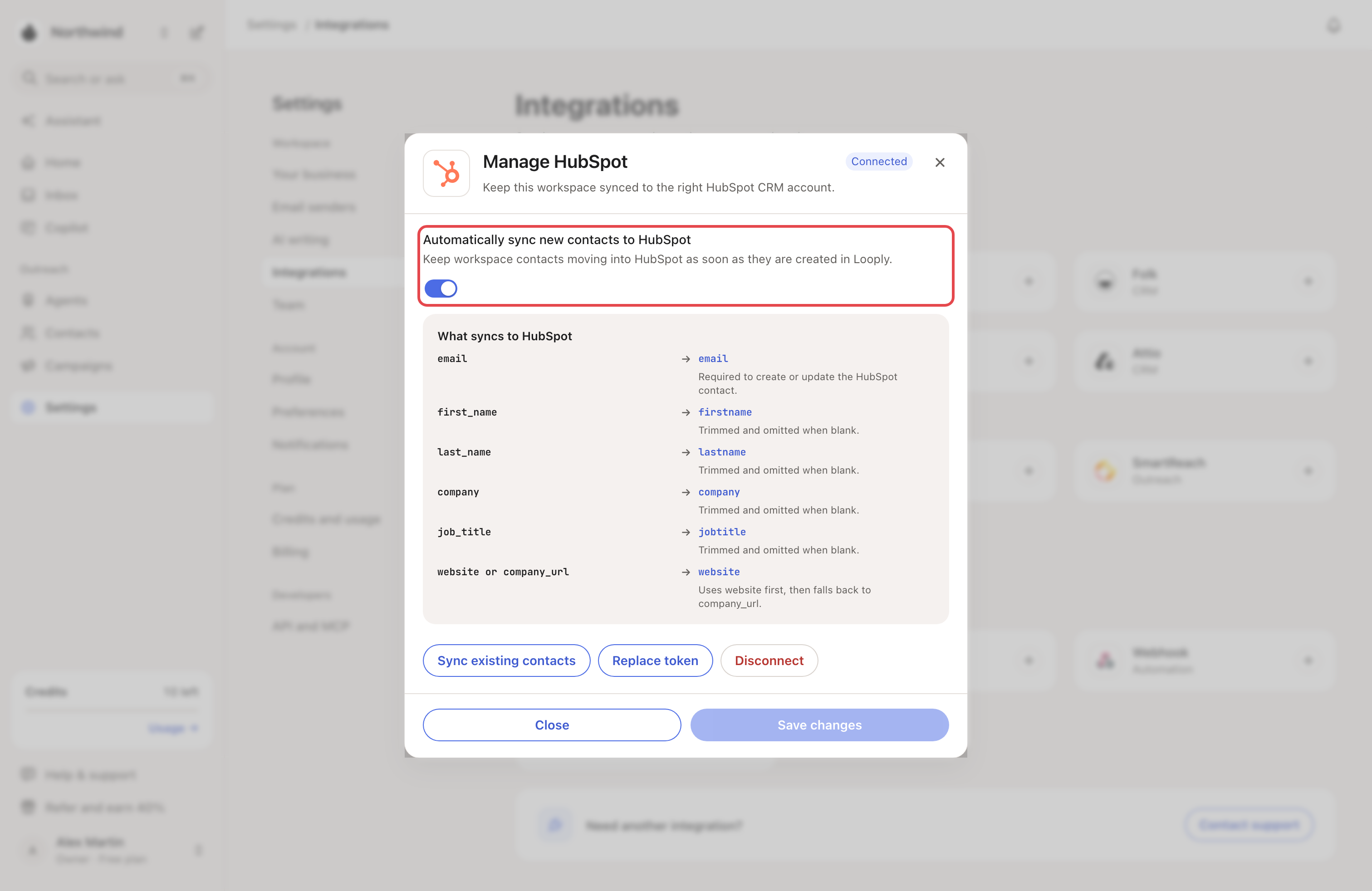
Check the switch that starts with Automatically sync or Automatically send. It's on by default for some tools, off for others. When it's on, every new contact goes to the tool.
Older contacts only go when their details change. To send them all now, open the card again and click Sync existing contacts. Slack and Zapier don't have this button. For a webhook, it only sends contacts to your On Lead Created URLs.
What syncs, and when
- CRMs and outreach tools get a contact when it's created. They get it again when its details change, for example a new email.
- Most tools need an email address, so a contact without one waits: see Find emails. HeyReach needs a LinkedIn URL, a first name and a last name instead.
- Webhook and Zapier can also fire when a campaign lead replies.
- Slack gets no contacts. It posts Lead Reply Alerts to the public channel you pick.
If something goes wrong
| What you see | Why | What to do |
|---|---|---|
| "HubSpot could not verify this private app token." | Wrong token, or a missing scope. | Create a token with both scopes. |
| "… didn’t accept these details. Check them and try again." | The key is wrong or expired. | Paste a new key from the tool. |
| "No … campaigns were found for this API key yet." | The tool has no campaign Looply can use. | Create one, then click Connect again. For HeyReach, launch it once. |
| "No active SmartReach teams were found for this API key yet." | SmartReach needs a SmartReach team before you pick a campaign. | Create or join a team in SmartReach, then click Connect again. |
| "… reported a problem with the last sync. Check the connection, then try again." | The tool refused a contact, or the key stopped working. | Open the card and replace the key (outreach tools: Disconnect, then connect again). Then click Sync existing contacts. |
| The cards are greyed out: "Select a workspace to enable HubSpot." | No single brand is selected. | Pick one brand in the brand menu, then open the card. |
To stop syncing, open the card and click Disconnect (Remove webhooks for webhooks). Need another tool? Click Contact support under Need another integration?.
Related articles: Find emails · Export contacts