Find the message you see, then follow its line.
| What you see | What it means | What to do |
|---|---|---|
| Connected | Ready to send. | Nothing. |
| Connecting | Looply is finishing the connection. | Wait a minute. |
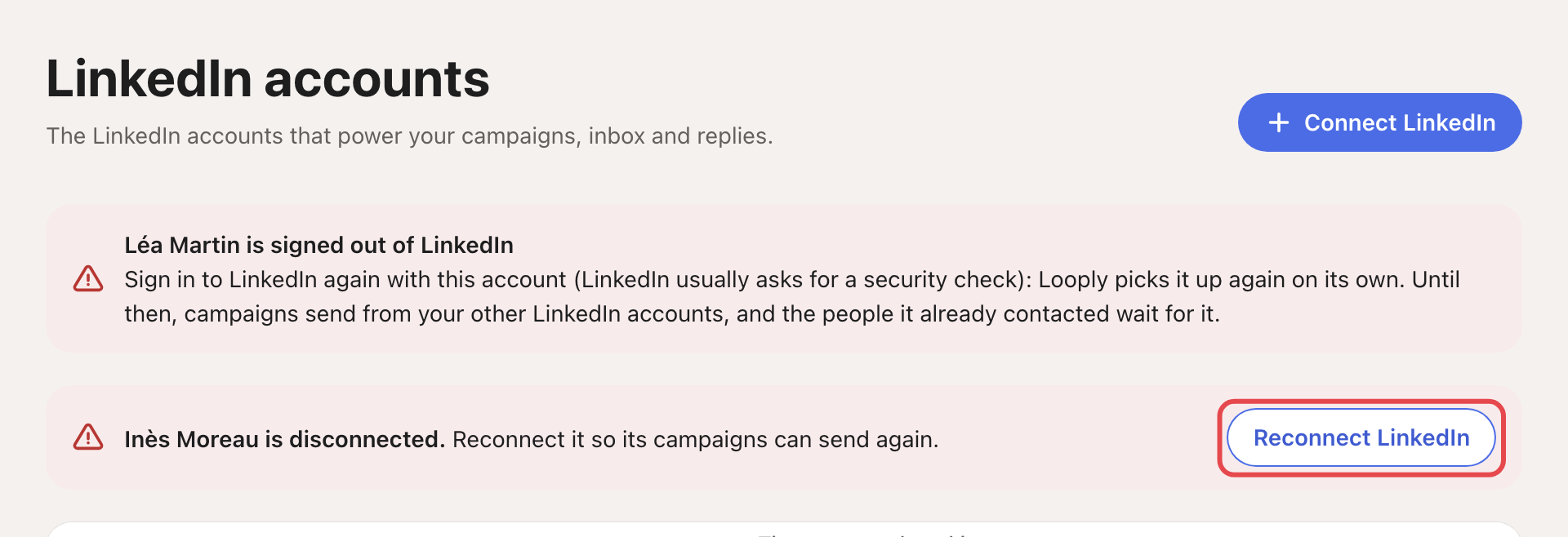
| Disconnected, with a red notice: "… is disconnected. Reconnect it so its campaigns can send again." | The connection stopped. | Click Reconnect LinkedIn and sign in again. |
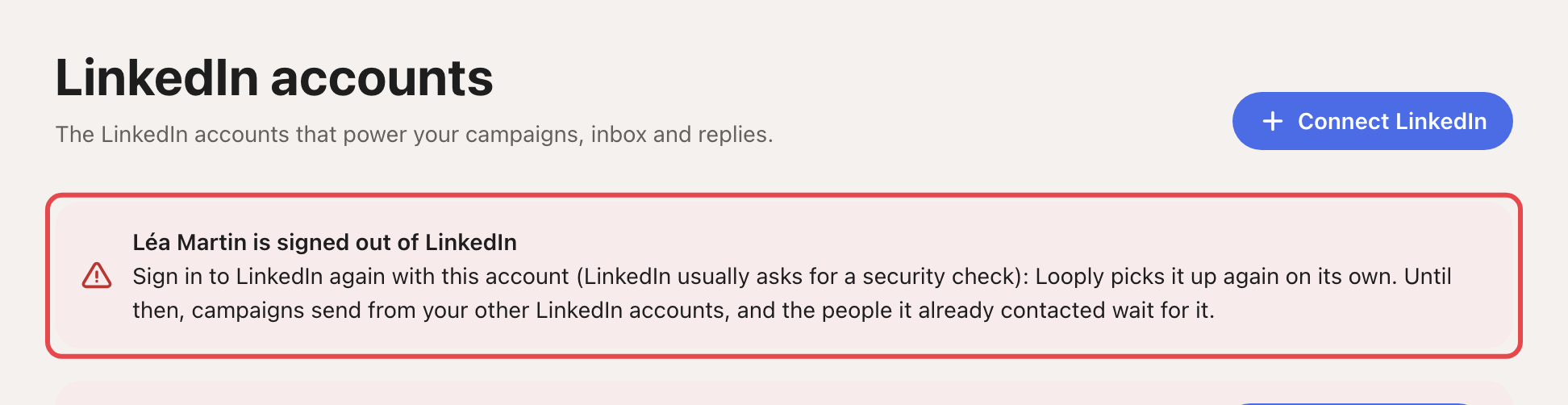
| Signed out | LinkedIn signed this account out, often to run a security check. | Sign in to LinkedIn with this account in your usual browser and finish any check. Looply picks it up on its own. Until then, campaigns send from your other LinkedIn accounts, and people this account already contacted wait for it. |
| Warming up (Daily limits column) | The account is in its first 3 weeks. | Nothing. See Warm-up and daily limits. |
| Protected, or "…’s LinkedIn is in safety mode until [date]." | LinkedIn asked this account to slow down. Looply then sends at most 5 invites a day, 35 a week and 10 messages a day. This lasts from 48 hours to 7 days, depending on the warning. The notice shows the end date. | Let it end on its own. Raising your limits won't lift it. |
| "Invitation notes are paused on …’s LinkedIn." | This account used LinkedIn's monthly allowance of invitation notes. | Nothing. Invites go out without a note until the 1st of next month. |
| "Daily invite limit reached on …’s LinkedIn." | Today's invites are done. | Wait for tomorrow, or click Change limits. |
| "Outside this campaign’s sending hours." | It is outside the campaign's days or hours. | Wait, or change the campaign's schedule. |

Agents show the same states: "Paused: LinkedIn is disconnected", "Paused: signed out of LinkedIn" or "Resting after a LinkedIn limit".
Connecting failed?
| What you see | What to do |
|---|---|
| "LinkedIn connection unavailable" | Wait a few minutes, then try again. |
| "Your plan’s LinkedIn account limit has been reached." | Disconnect an account you no longer use, or move to Scale. |
| LinkedIn asks for a code or a phone check | Complete it on the sign-in page. If no code arrives, wait 10 minutes and try once more. |
| LinkedIn keeps refusing the sign-in | Turn off any VPN, sign in from your usual device and place, and don't retry many times in a row. |
After a warning from LinkedIn
- Finish LinkedIn's check yourself, on LinkedIn, in your usual browser.
- Turn off any other LinkedIn automation tool or browser extension.
- Stay in your usual location: no VPN changes.
- Let safety mode end on its own. The warm-up then starts again at week 1.
Only LinkedIn can lift a restriction on your LinkedIn account. If LinkedIn blocks the account itself, contact LinkedIn support.