A reply branch is a short extra sequence inside a campaign. It starts for a person when they reply a certain way, or finish your steps without replying. Branches sit under the campaign's steps, at When they reply.
Branch steps follow the campaign's rules:
- Review mode: with Review before send on, each step waits for your approval. On Autopilot, branch steps send without it.
- Sending hours and a paused campaign: steps wait, then go on.
- Blocklist: Looply never emails an address on your Blocklist. An unsubscribe or a bounce ends that person's branch.
What you need: a launched campaign to start a branch (you can write one before). For email steps, an earlier email with the person in this campaign: the branch replies in that thread.
Step 1: Add a branch
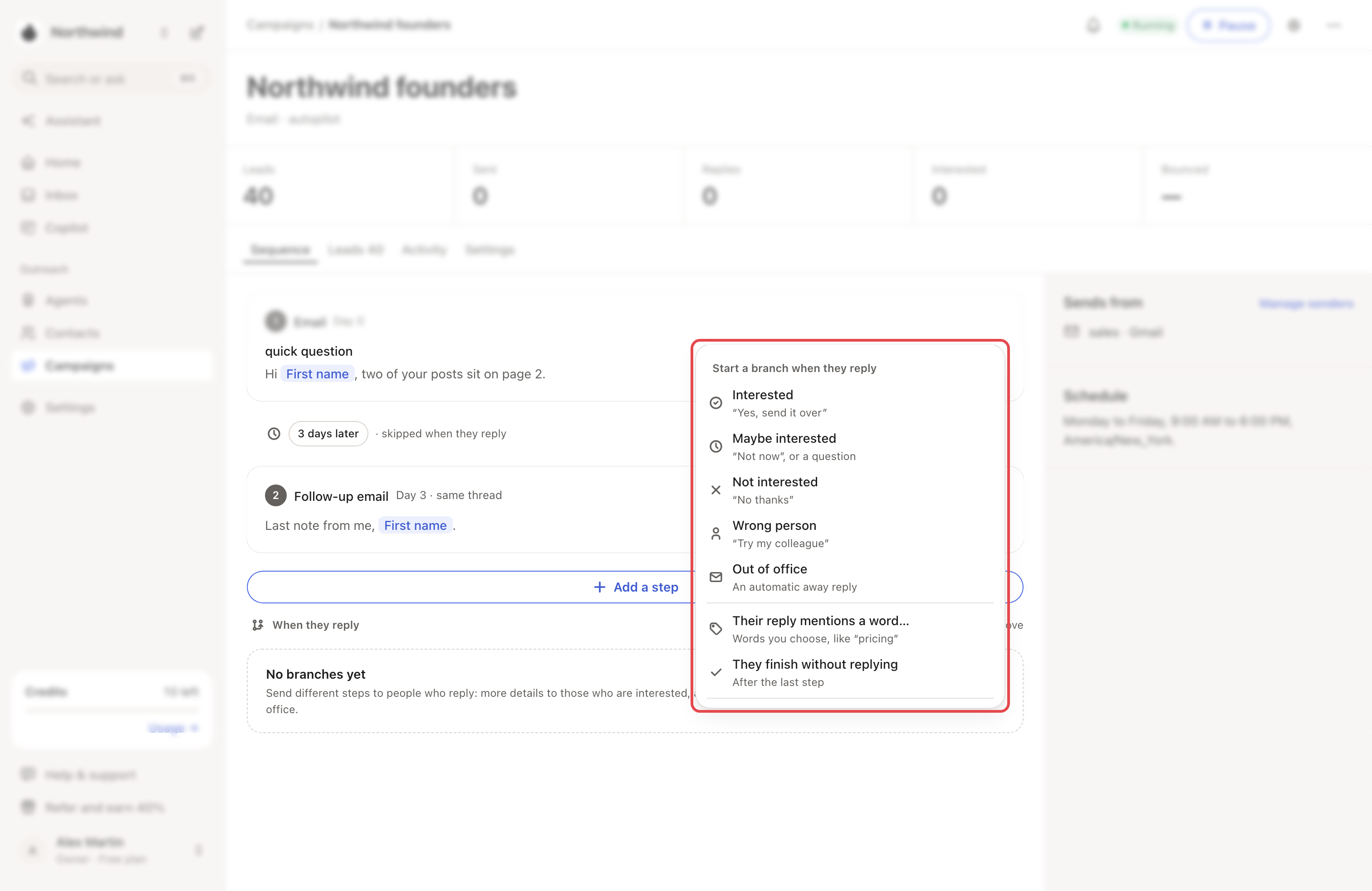
On the campaign's Sequence tab, under the steps, click Add a branch. Pick the reply that starts it, like Interested, Out of office or They finish without replying.
Looply adds a Draft branch with one email step and opens its rules on the right.
Step 2: Choose what starts it
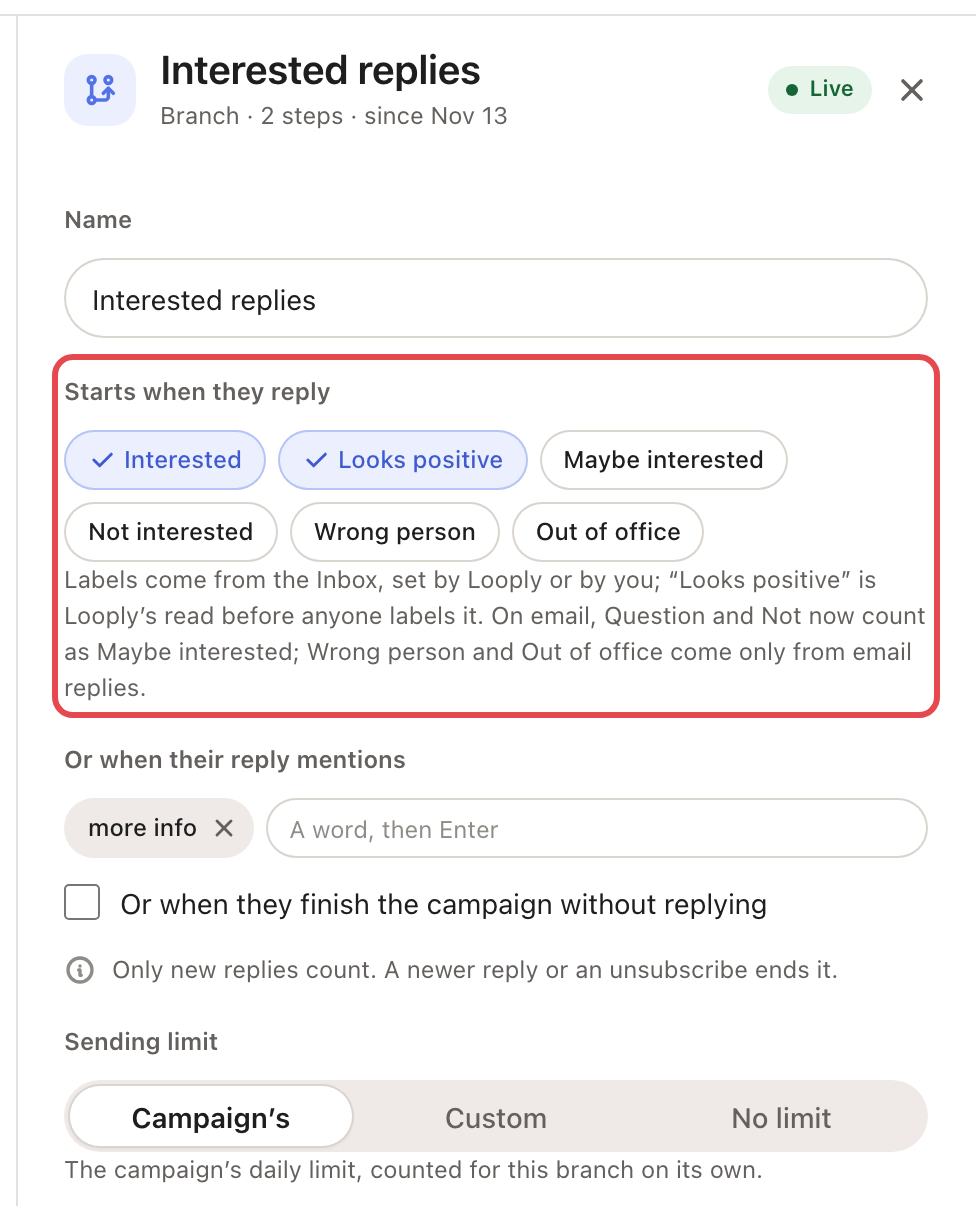
Give it a Name. Then pick what starts it. Any one is enough:
- Starts when they reply: the labels a reply gets in the Inbox, from Looply or from you, and Looks positive (Looply's read before anyone labels it). On email, Question and Not now count as Maybe interested. Wrong person and Out of office come only from email replies.
- Or when their reply mentions: type a word, then press Enter.
- Or when they finish the campaign without replying.
Only new replies count: replies from before you start the branch, replies older than 14 days and unsubscribes start nothing. Click Save.
Step 3: Write the steps
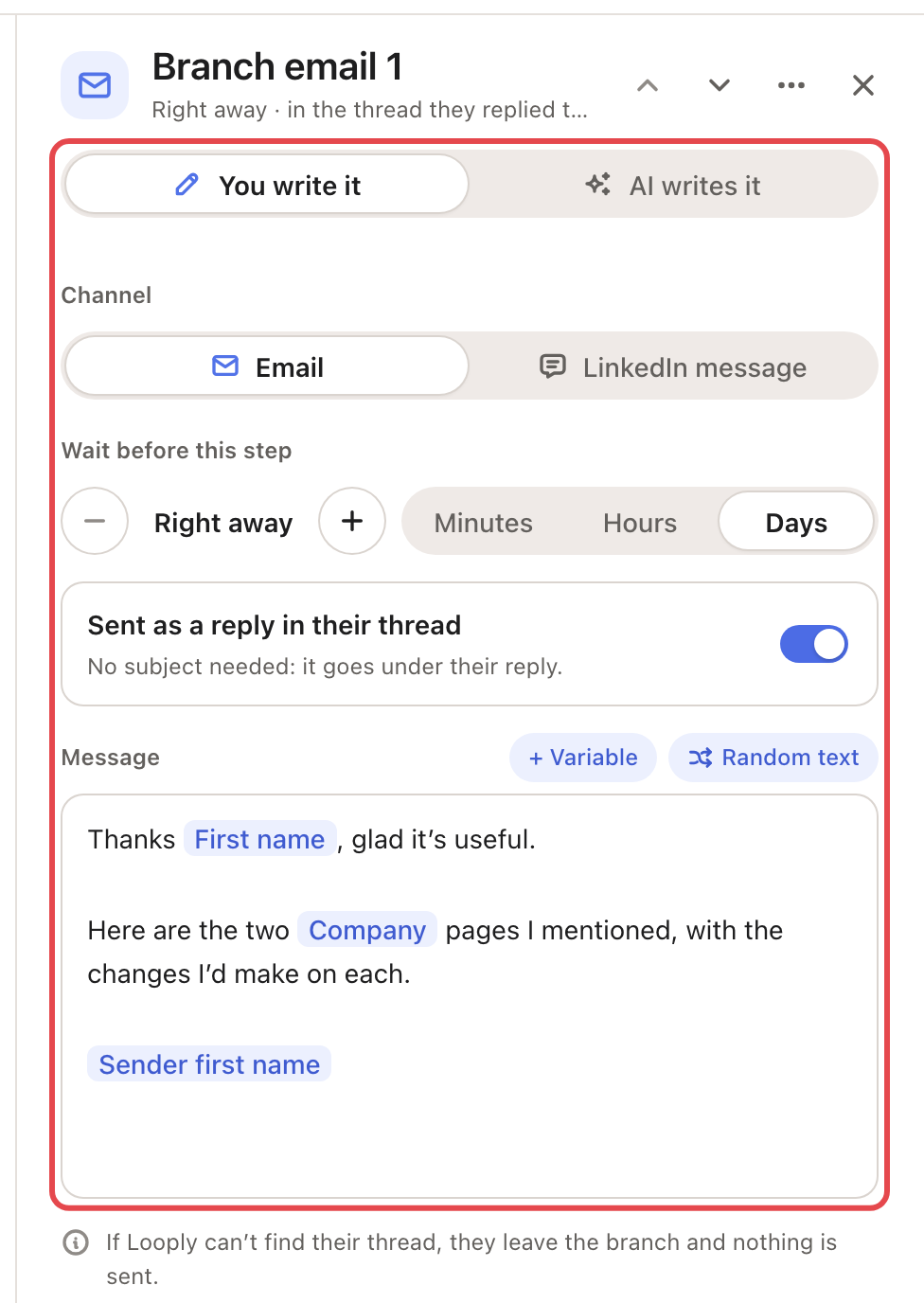
Click a step under the branch. Set Who writes it, the Channel (when LinkedIn is on), Wait before this step and the Message. Change the sample text.
- An email is Sent as a reply in their thread. Turn that off to write a Subject.
- In an email, + Variable adds First name, Company or Sender first name, and Random text gives each person one of several options.
- A LinkedIn message has its own buttons: + First name, + Company, + Job title and + Why now. Random text and the sender's name stay in emails.
- With AI writes it, Looply reads the person's company website and fills the ✦ parts. Those messages always wait for your review.
Click Save. Add a step to this branch adds an email 2 days later.
Step 4: Set the limit and start it
- In the rules, Sending limit is the Campaign's daily limit, counted for this branch alone. You can pick Custom or No limit. Leave Ignore each LinkedIn account's daily limits off.
- Click ⋯ on the branch's row, then Start branch. Its tag turns from Draft to Live.
What happens next
- Each row shows what starts it, its steps, and its numbers: in it now, sent, failed, waiting for your review.
- A newer reply ends a person's branch. A reply that matches two branches starts both.
- The campaign's When they reply rules (Settings tab) still run. The default Out of office rule restarts the main steps after the return date. Set it to Stop the sequence if the branch should be the only follow-up.
- ⋯ on a row also has Pause branch, Resume branch, Duplicate branch and Archive branch. An archived branch sends nothing more: the people in it get no further steps.
If something goes wrong
| What you see | Why | What to do |
|---|---|---|
| Start branch is grey | The campaign is a draft, or nothing starts the branch yet. | Launch the campaign, or finish its rules. |
| failed in the row | An email found no earlier email with the person, or uses a variable Looply doesn't know. | Check the steps. |
| Review 1 draft (or more) at When they reply | Review mode, or AI writes it. | Click it, then Approve and send or Reject. Rejecting ends that person's branch. |
| Steps don't go out | The campaign is paused, outside its hours, or at the branch's daily limit. | Resume it, or check Schedule in its Settings tab. |
Related articles: When someone replies · Unsubscribes, bounces and who Looply won't email · Change a campaign that's already running