Use this for any email provider that supports IMAP and SMTP. Looply sends your emails through SMTP and reads the replies through IMAP.
Gmail or Microsoft 365? Use their own options: Connect Gmail or Google Workspace or Connect Microsoft 365 or Outlook.
What you need:
- the inbox's email address and its password, or an app password
- your provider's SMTP and IMAP settings: server names, ports and security
- a free inbox on your plan: Growth includes 2, Scale 5
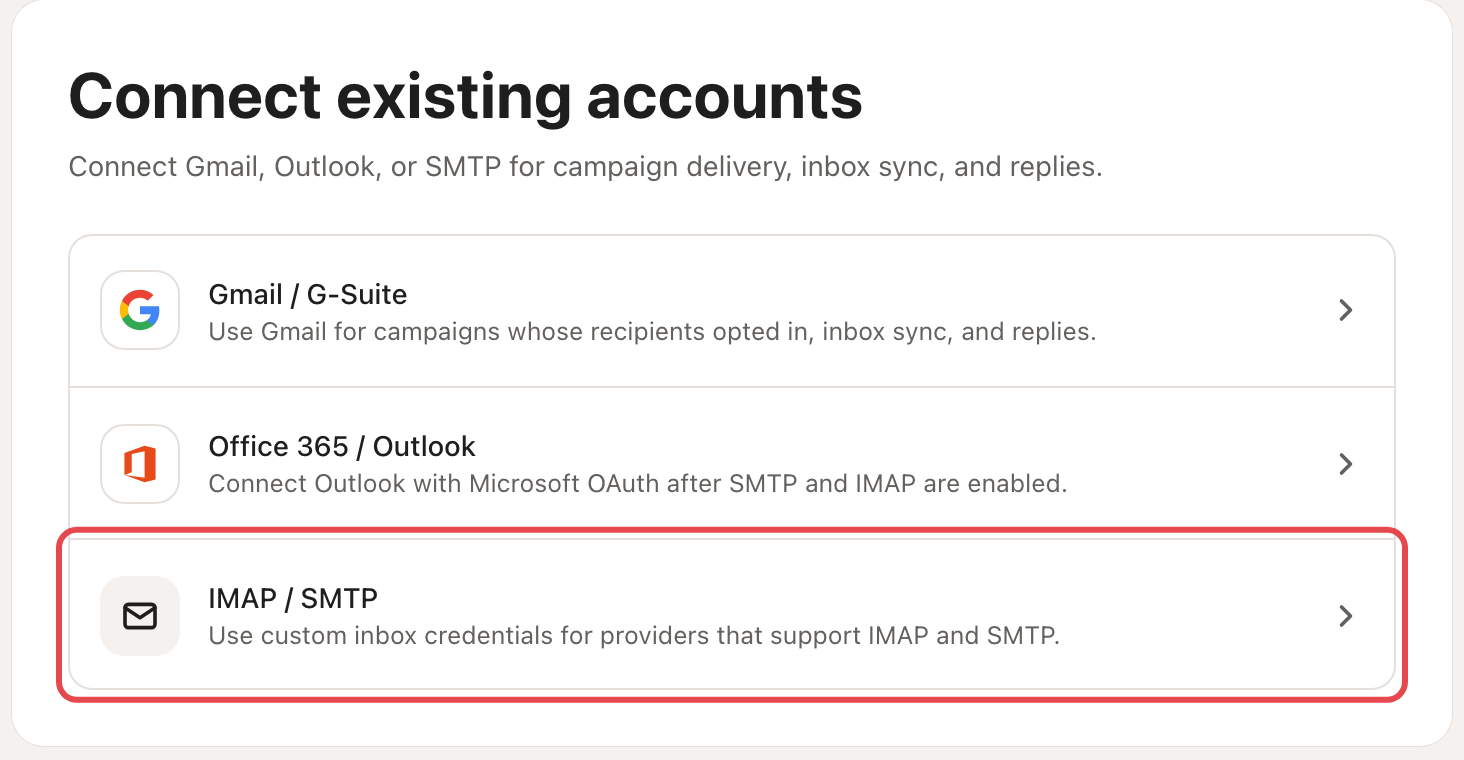
Step 1: Choose IMAP / SMTP
Go to Settings → Email senders and click Connect inbox. Choose IMAP / SMTP. If Looply asks, pick the inbox's brand.
Step 2: Fill in the sender identity
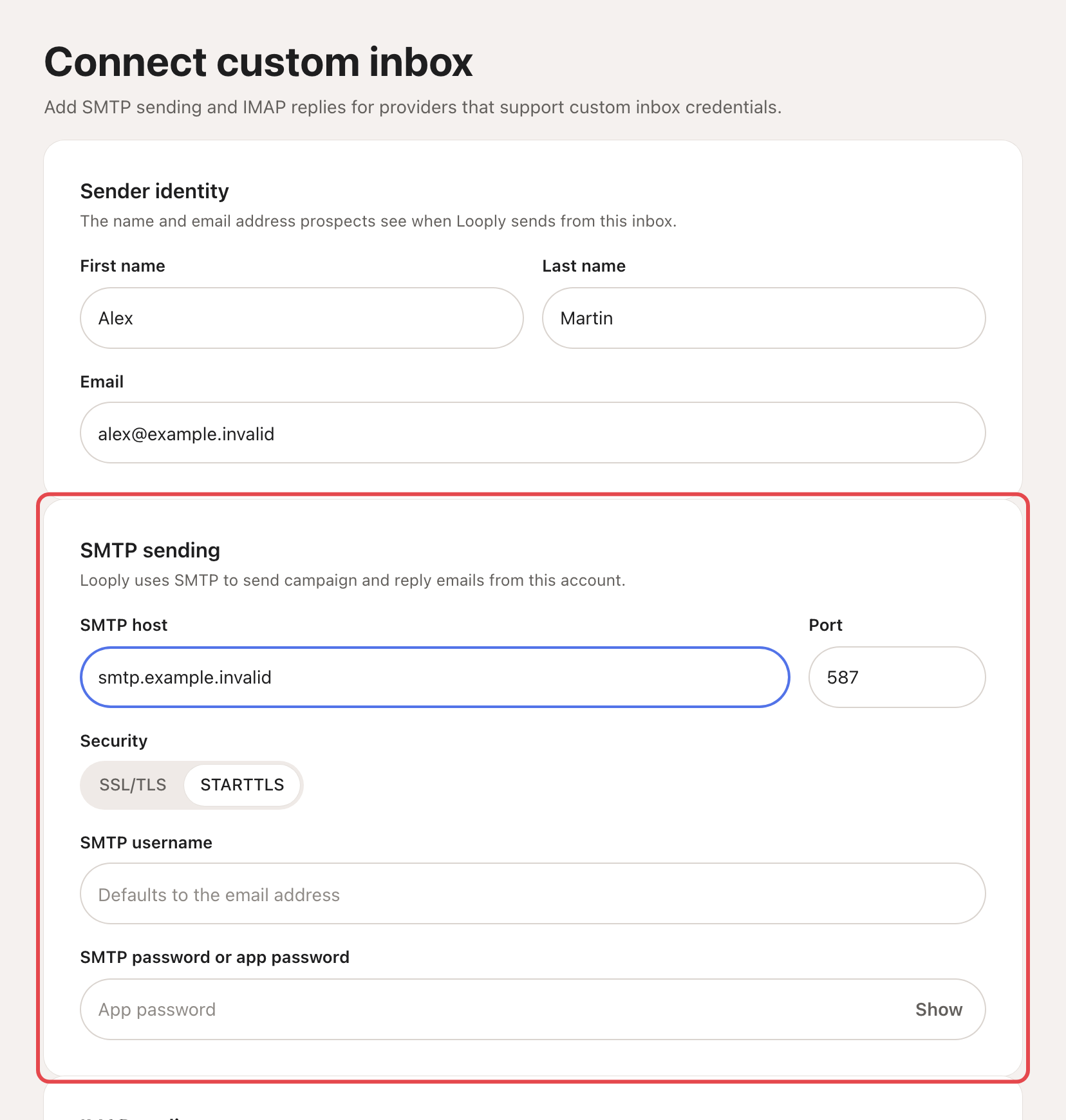
Under Sender identity, enter the First name, Last name and Email people will see.
Step 3: Fill in SMTP sending
Under SMTP sending, enter the SMTP host and Port. Pick the Security: SSL/TLS or STARTTLS. Looply starts you with port 587 and STARTTLS.
Leave SMTP username empty when it is your email address. Type the password in SMTP password or app password.
Step 4: Fill in IMAP replies
Under IMAP replies, enter the IMAP host, Port and Security. Looply starts you with port 993 and SSL/TLS.
Use SMTP credentials for IMAP is on. Turn it off only if your provider gives you a separate IMAP username and password.
Step 5: Test and connect
Click Test and connect. Looply signs in to both servers, which can take up to a minute. It sends no email.
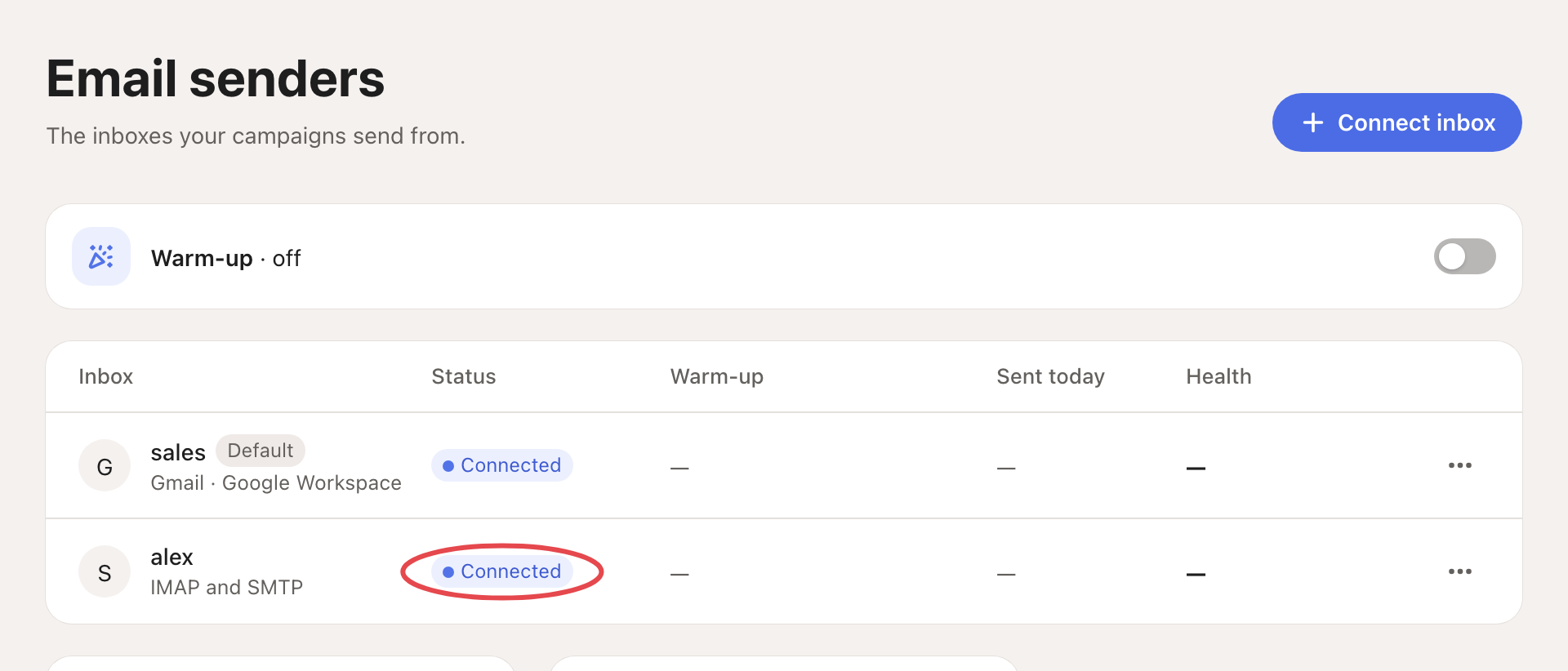
When it works, you see Custom inbox connected. The inbox shows in Email senders as Connected. The first inbox of a brand becomes its Default.
What happens next
- Replies to your campaign emails arrive in Looply's Inbox.
- The inbox sends up to 30 emails a day by default. With Warm-up for new inboxes on, it also starts a 21-day warm-up. See Email warm-up and daily limits.
- Pick it in a campaign's Sending step. See Create a campaign.
If something goes wrong
| What you see | What to do |
|---|---|
| "Enter a valid outreach email account." | Check the Email field. |
| "SMTP and IMAP server details are required." | Fill in both hosts and the password. |
| "Looply could not verify SMTP and IMAP for this account." | Check the hosts, ports and security with your provider, and that IMAP is allowed. With two-step sign-in, use an app password. |
| "Your plan’s sender limit has been reached. Upgrade to connect another account." | A disconnected inbox still counts. Delete one you no longer use (⋯ → Delete), or move to Scale. |
| The inbox shows Reconnect | Click Reconnect on the inbox. The form opens with the address filled in: enter the new password and connect. Looply updates the existing inbox. |
Related articles: Which way to connect your email · Connect Gmail with an app password · Email warm-up and daily limits