Overview
An app password is a 16-letter code Google makes for one app. Looply uses it to send your emails and to bring replies into your Inbox. It's never your real Google password.
Use it when:
- your inbox is a personal @gmail.com address;
- you don't have a Google Workspace admin to approve Looply;
- you want to warm up the inbox (warm-up isn't available with Google sign-in).
Company inbox with an admin? Google sign-in is simpler to manage.
Step 1: Turn on 2-Step Verification
Google only offers app passwords when 2-Step Verification is on. Open myaccount.google.com/security with the inbox you want to connect and turn on 2-Step Verification.
Step 2: Create the app password
- Open myaccount.google.com/apppasswords. Sign in again if Google asks.
- Type Looply as the app name and click Create.
- Copy the 16 letters Google shows. Google shows them only once.
Step 3: Choose Gmail app password in Looply
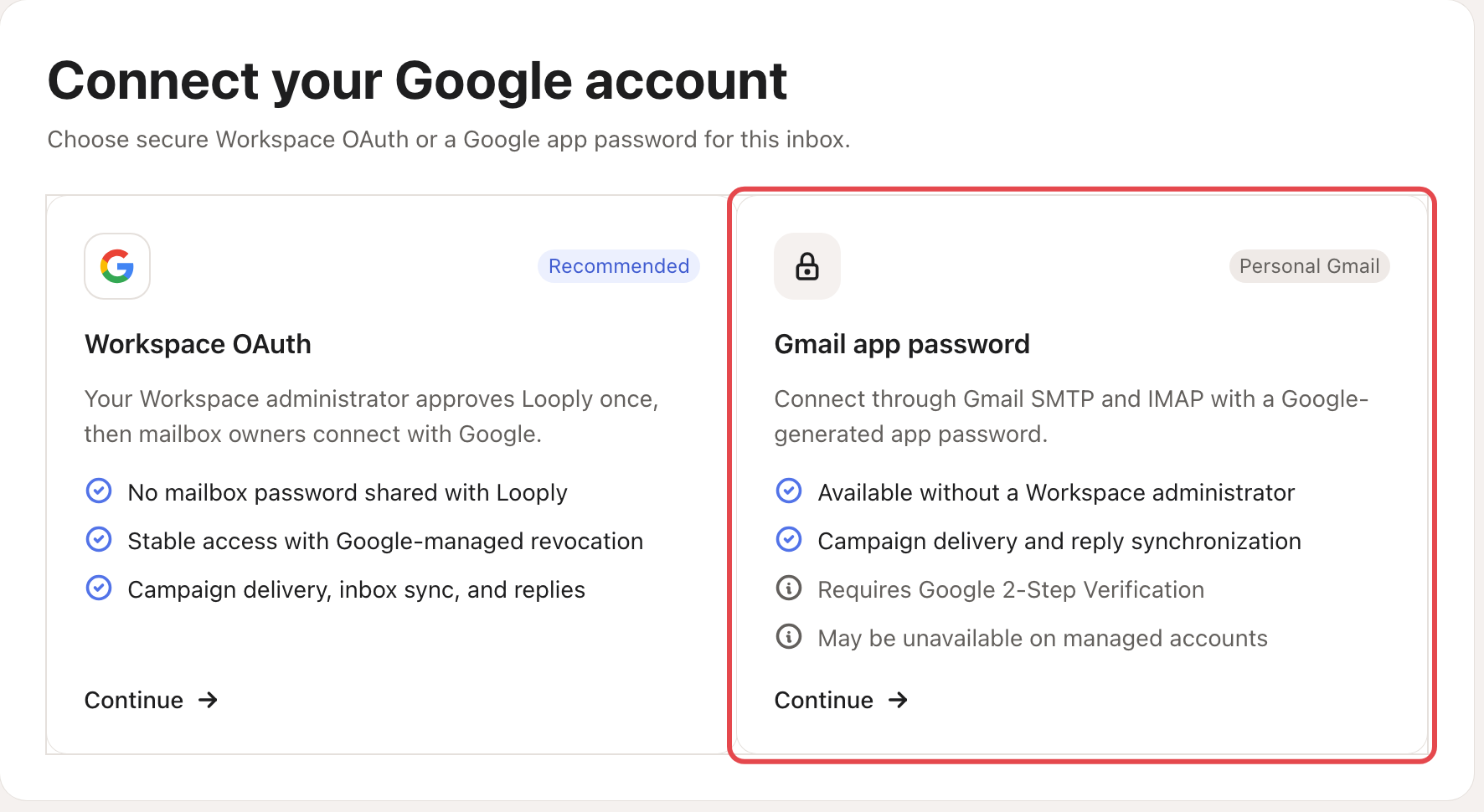
In Looply, go to Settings → Email senders → Connect inbox → Gmail / G-Suite. On Gmail app password, click Continue. If you have several brands and none is selected, Looply asks you to Choose a brand first.
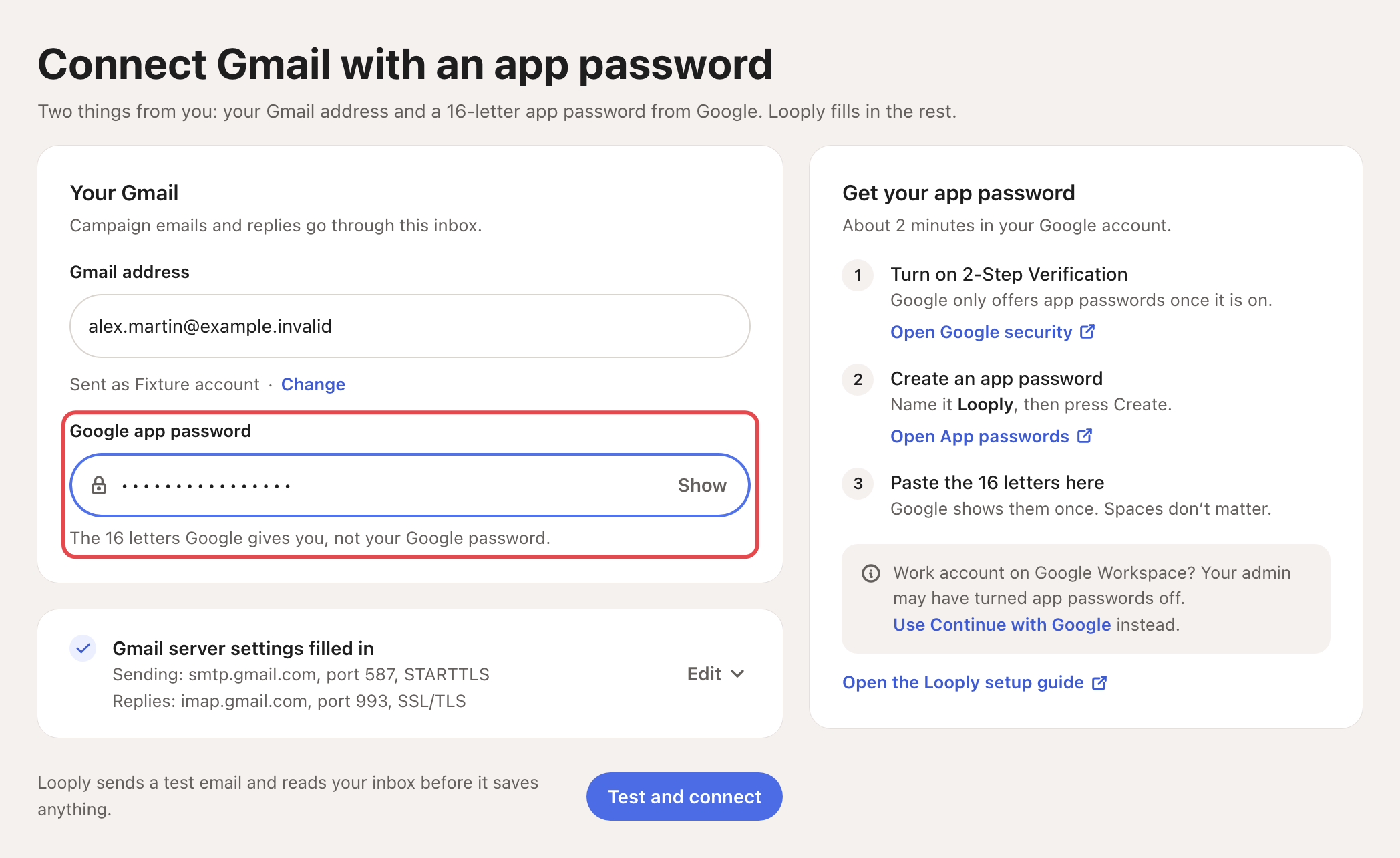
The form also lists Steps 1 and 2 under Get your app password, with links: Open Google security and Open App passwords.
Step 4: Enter your address and the app password
- In Your Gmail, enter your Gmail address. Under it, Sent as shows the name people see. Click Change to edit it.
- Paste the 16 letters in Google app password. Spaces don't matter.
- Click Test and connect. Looply sends a test email and reads your inbox before it saves anything.
You don't need to type any server settings: Gmail server settings filled in shows the ones Looply uses. Click Edit only if your inbox uses other servers.
Step 5: Done
Looply shows Custom inbox connected and the inbox appears in Settings → Email senders, listed as IMAP and SMTP. To warm it up, see Email warm-up and daily limits.
If something goes wrong
| What you see | What to do |
|---|---|
| Google doesn't show App passwords | 2-Step Verification is off, or set up only with security keys, or the account has Advanced Protection. On a company account, your admin may have turned app passwords off: use Google sign-in instead. |
| "Looply could not verify SMTP and IMAP for this account." under the form | Check the email address, then create a new app password and paste it again. On a company account, ask your admin whether IMAP is allowed. |
| "Your plan’s sender limit has been reached. Upgrade to connect another account." | A disconnected inbox still counts. Delete one you no longer use (⋯ → Delete), or move to Scale. |
| The inbox shows Reconnect | You probably changed your Google password: Google then cancels every app password. Create a new one, click Reconnect and paste it in Google app password. |
Frequently asked questions
Is an app password safe? It is not your real Google password, and you can delete it any time at myaccount.google.com/apppasswords. If you delete it, Looply can no longer use the inbox until you connect it again.
Can I reuse the code for another inbox? No. Each inbox needs its own app password, created while signed in to that inbox.
Related articles: Connect Google Workspace inboxes · Which way to connect your email · Connect any inbox with IMAP / SMTP