A template tells Looply how to build each AI personalised message: the fixed text, the parts Looply writes, the tone and the length. Each brand starts with Looply's own templates, marked System. You can't change those, but you can copy them.
What you need:
- to be the Owner or an Admin, if you work in a team (Members can only read templates)
- a campaign with leads, to preview your template
Step 1: Open AI writing
Go to Settings → AI writing. At the top, pick the purpose: First touch, Follow-up or Last bump.
In a new campaign, the first email or message is a First touch. The last of three or more is a Last bump. The others are Follow-ups.
Step 2: Copy a template
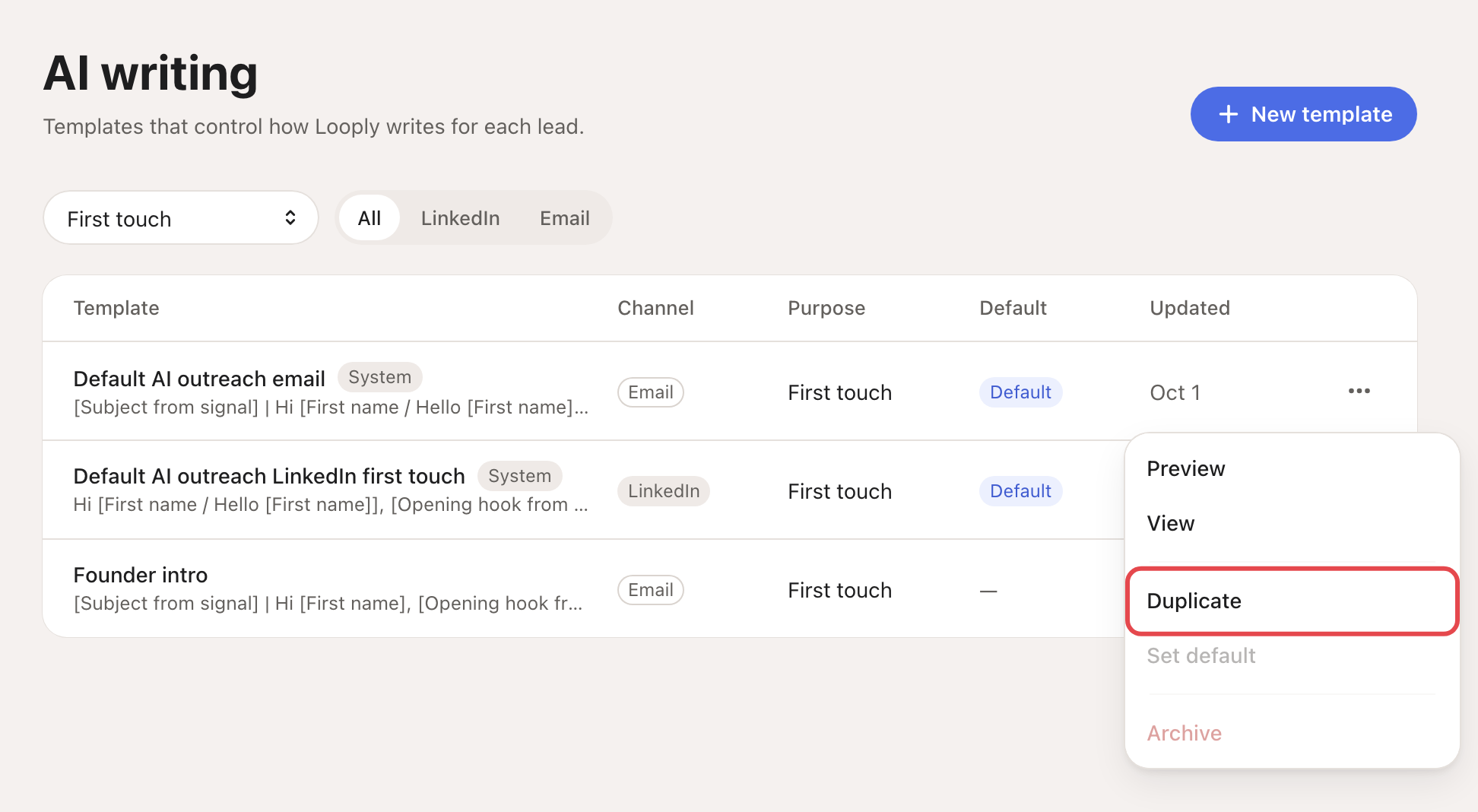
On the template to start from, click ⋯ → Duplicate. The copy appears with "(Copy)" after its name. Click it to open it. (An open System template also has Duplicate to edit.)
You can also click New template. Check the channel and purpose next to its title: you can't change them later.
Step 3: Write the message
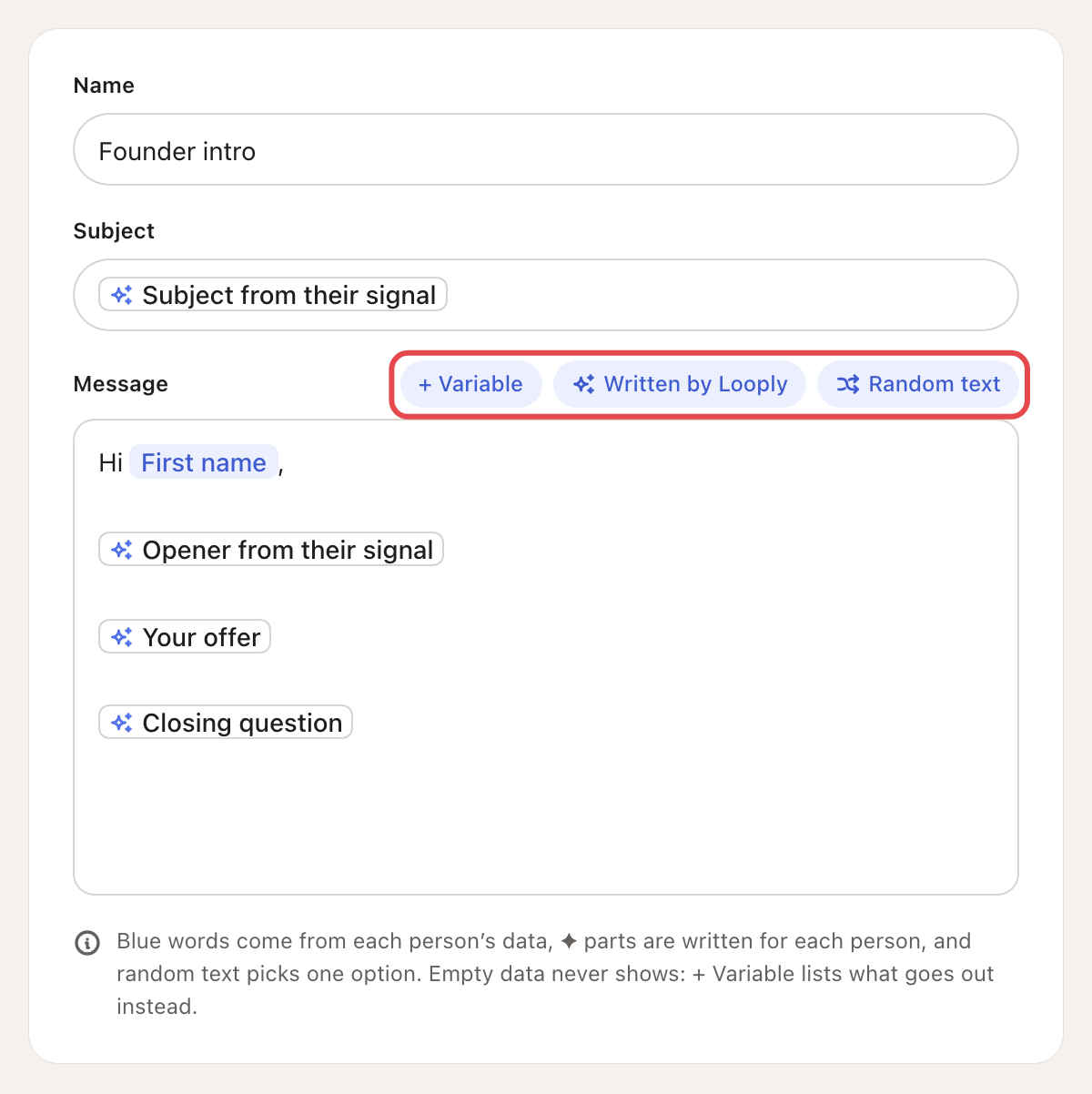
Give it a Name. Email templates also have a Subject.
In Message, the words you type stay exactly as written. Above it:
- + Variable adds First name, Company or Sender first name.
- Written by Looply adds a part Looply writes for each person: Opener from their signal, Your offer, Proof you approved (email only) or Closing question. In the subject: Subject from their signal.
- Random text gives each person one of several options.
Start with a greeting and First name, like "Hi" or random text "Hi / Hello / Hey". An email needs Opener from their signal, Your offer and Closing question. A LinkedIn message needs Closing question, and Opener from their signal or Your offer. Looply checks this when you save.
Step 4: Set the tone and length
On the right, How it writes sets Tone, Length (Short, Medium or Long), Ends with and Language.
More options holds the rest, like Exact length (up to 200 words and 1,400 characters), Never say and What to say for each signal.
Then click Save.
Step 5: Preview it
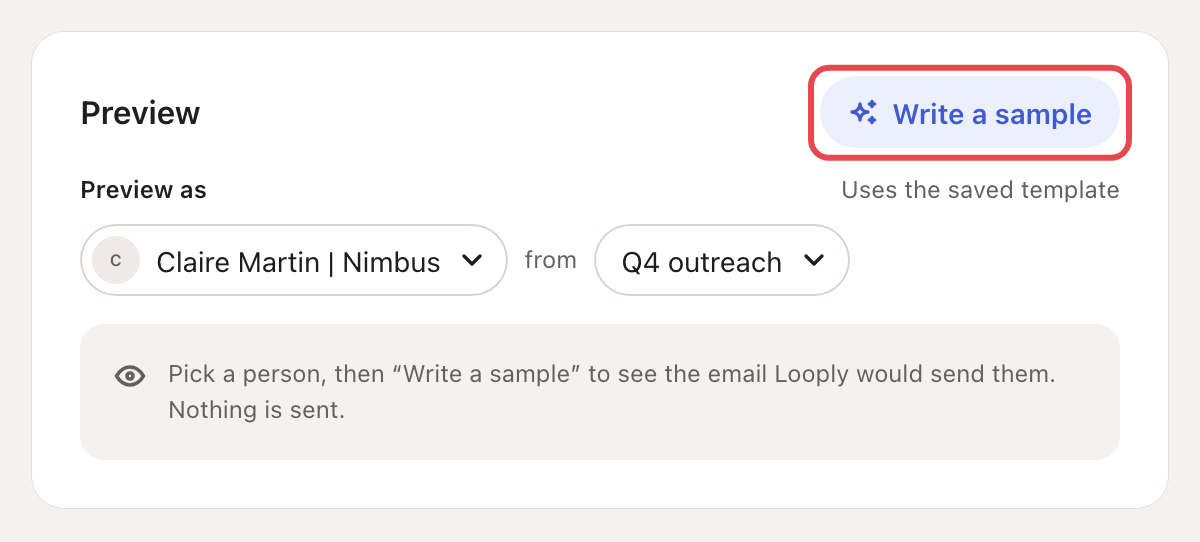
Under Preview, pick a person after Preview as, and a campaign after from. Click Write a sample. A good sample shows Passes the quality check. Nothing is sent, and the sample doesn't use credits.
The sample uses the saved template: save your changes first.
Step 6: Use it in a campaign
- ⋯ → Set default makes it the Default for its channel and purpose. New campaign steps left on Looply’s default use it.
- Or, when you create a campaign, pick Template → Your template: … on an AI personalised step.
- In a draft or paused campaign, click an email step and choose AI writes it. Under Template, click Change, pick yours, then click Save.
Your changes apply to the messages Looply writes after you save. In Review mode (Review before send), you still approve each one in Copilot.
→ Learn more: How Looply writes your messages
If something goes wrong
| What you see | Why | What to do |
|---|---|---|
| A line under a field when you save, like "Words: at most 200." | The template breaks a rule. | Fix what it says, then save again. |
| Write a sample stays grey: "No campaign has a step that uses this kind of template yet." | No campaign of this brand has a step for this channel. | Add such a step to a campaign, with people in it. |
| Held for review. in the preview | The sample didn't pass the quality check. Messages like it wait until Looply writes them again or you edit them in Copilot. | Adjust the template, save, then write another sample. |
Related articles: Create a campaign · Review mode, Autopilot and Copilot