Overview
Your name, picture, sign-in methods and password are in Settings → Profile. You can also click your name at the bottom of the sidebar, then Profile.
What you need: access to the email address you sign in with.
Ways to sign in
- Continue with Google: your Google account.
- Continue with LinkedIn: your LinkedIn account, when the button shows.
- Your email and a password of at least 8 characters.
Signing up with your email? Looply sends a 6-digit code. Enter it on Confirm your email. Or click Confirm my email in the email, then on the page that opens. Both work for 24 hours. No email? Click Resend code, or Change email after a typo.
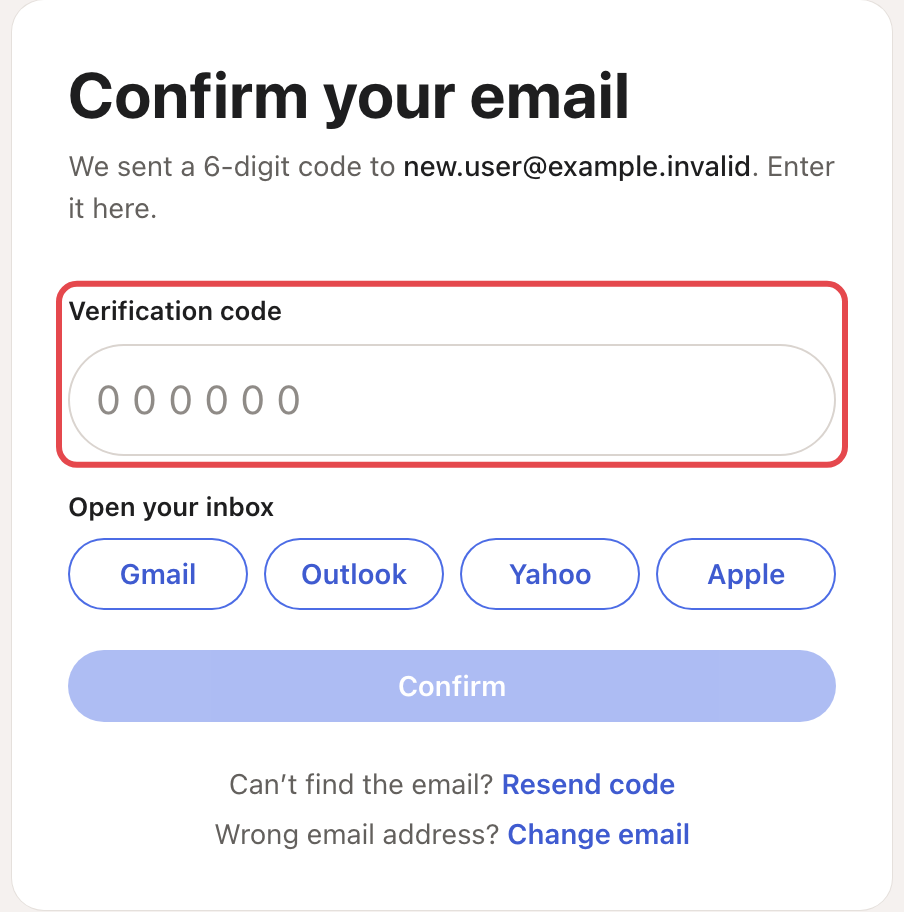
Step 1: Change your name and picture
- In Profile, click your name, type the new one, then click elsewhere. Looply shows "Preferred name updated".
- Click your picture. With no picture yet, you pick a file to upload (PNG, JPEG, WebP or GIF). Otherwise the Profile picture menu opens: choose Gallery for a new one, or Delete to remove it.
Step 2: Add another way to sign in
In Sign-in and security, next to Sign-in methods, click Connect Google (or Connect LinkedIn). Sign in to that account. Back in Looply, you see "Google linked successfully".
To remove one, click Disconnect with its name, then confirm. You can't remove your last way to sign in, or your email and password.
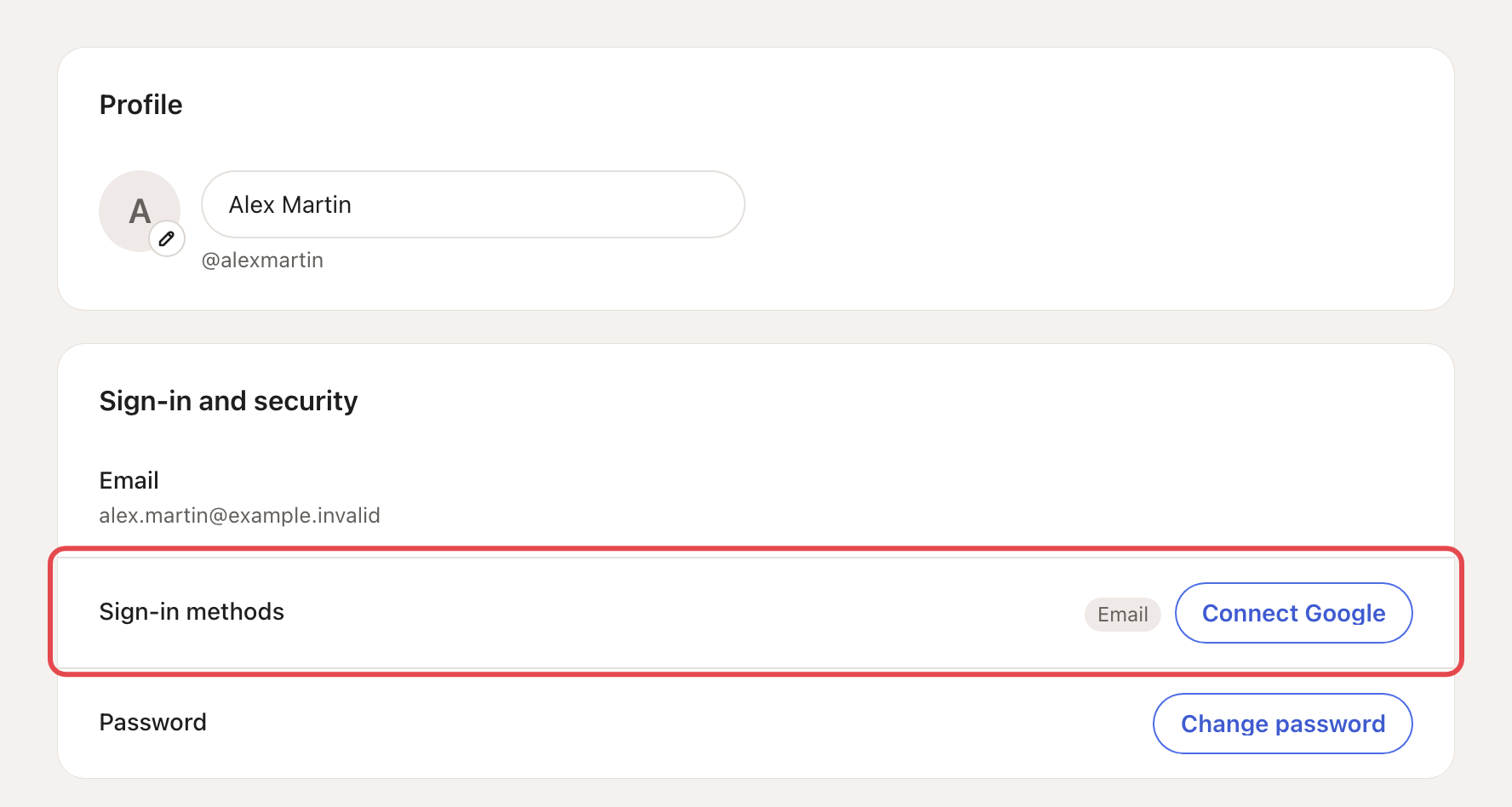
Step 3: Change your password
- Click Change password.
- Enter your Current password, a New password and Confirm new password.
- Click Update password.
Forgot your current password? Click Send reset email instead. Signed up with Google? Click Create password to sign in with your email too.
Forgot your password
On the sign-in page, click Forgot your password?, then Send reset email. In the email, click Choose a new password: it works once, for 24 hours. Enter the new password twice and click Update password.
Devices and signing out
Devices shows the browser you're using now. On a phone, it's a row in Sign-in and security. Sign out, in the menu that opens from your name, signs out this browser only. There's no button to sign out other devices. If someone else may be using your account, change your password and write to us from the chat.
Your preferences
Go to Settings → Preferences. Each change saves at once.
- Theme: Light, Dark or Use system setting. It applies to this browser only.
- Sound for new replies: a sound when a new reply arrives in Primary, while Looply is open. → Learn more: Notifications and new-reply alerts
- Language: one of 13 languages for Looply. Your sign-in emails follow it.
- Time zone: with Set time zone automatically on, Looply uses your device's time zone. Turn it off to pick one.
Delete your account
- In the Account card, click Delete my account.
- Looply lists what you'll lose:
- Your agents and the people they found
- Your contacts, lists and campaigns
- Your inbox, drafts and connected inboxes and LinkedIn accounts
- Your settings, team access and usage history
- Paying for a plan? Choose Cancel now and delete immediately, or Keep access until [date], then delete.
- Type DELETE and click Delete my account (or Cancel at period end and schedule deletion).
This can't be undone. Your account's data is deleted within 30 days, and backup copies within 90 days. Anonymized analytics and records the law requires may be kept. See section 10 of the privacy policy, and section 3.3 for Gmail data. → Learn more: Delete your Looply account
If something goes wrong
| What you see | Why | What to do |
|---|---|---|
| "Invalid or expired code. Please try again or request a new code." | The code is wrong or older than 24 hours. | Click Resend code and use the newest email. |
| "This link was already used" | Each email link works once. | If you already confirmed, sign in. If not, enter the 6-digit code instead. |
| "Email or password is incorrect. Please try again." | A typo, or you signed up with Google. | Try Continue with Google, or click Forgot your password?. |
| "No account found with this email. Please sign up first." | This email has no Looply account. | Check the address, or sign up. |
Frequently asked questions
Can I change my sign-in email? Not from Settings. Write to us from the chat.
Can I turn on two-step verification? Not at the moment.
Support asked for my user ID. Where is it? In the Account card. Click the copy button next to User ID.
Related articles: Change or cancel your plan · Plans, trial and credits