The reply agent drafts an answer to each new reply in your campaigns and inbox. Nothing sends until you review it, unless you turn on Setter mode.
What you need:
- a connected LinkedIn account (see Connect your LinkedIn account)
- a free agent slot: the reply agent uses one
Step 1: Add the agent
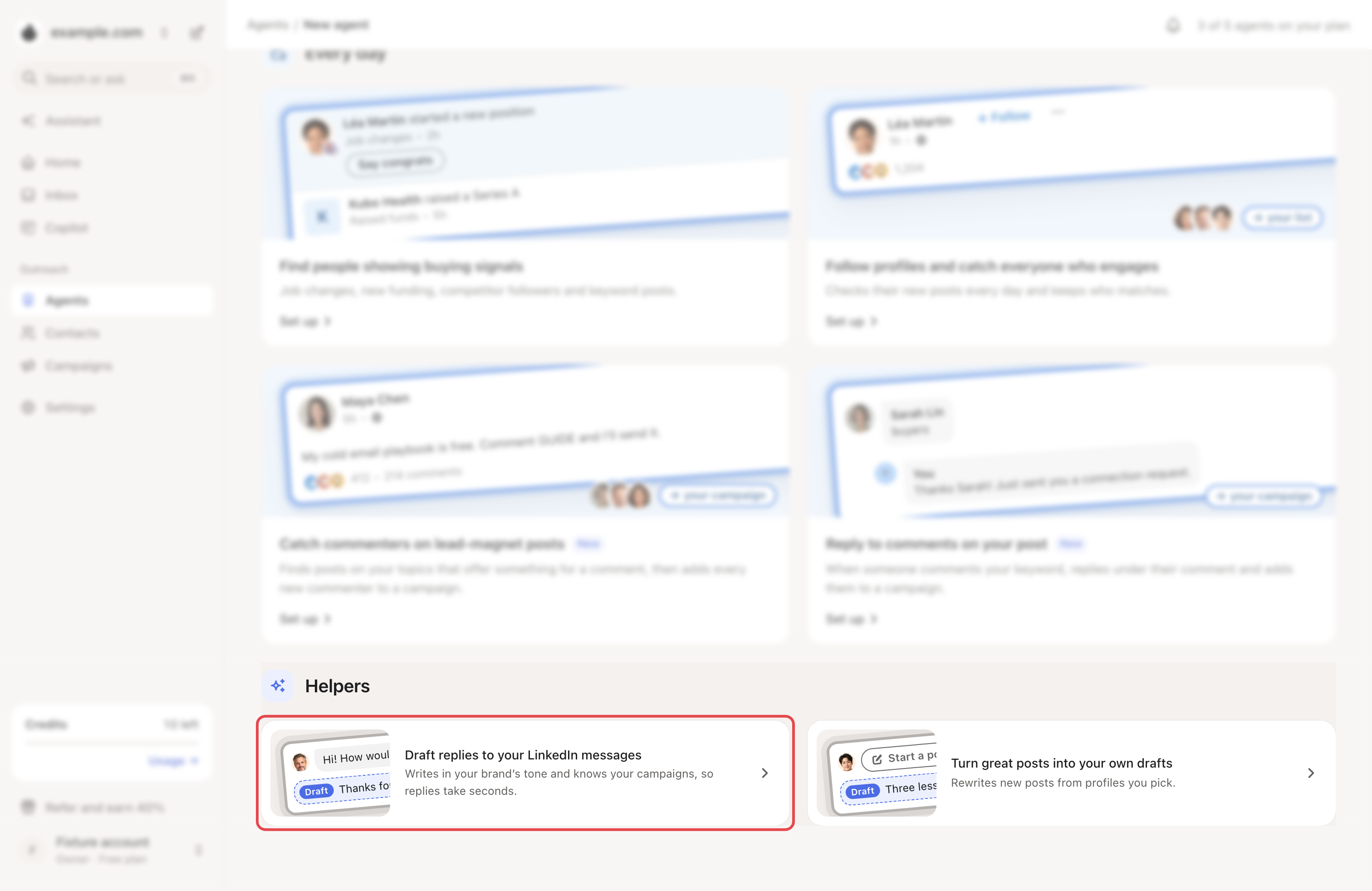
Go to Agents → New agent. Under Helpers, click Set up on Draft replies to your LinkedIn messages.
Step 2: Name it and set its behaviour
Give it a name, then Continue. On Configure reply behavior, choose:
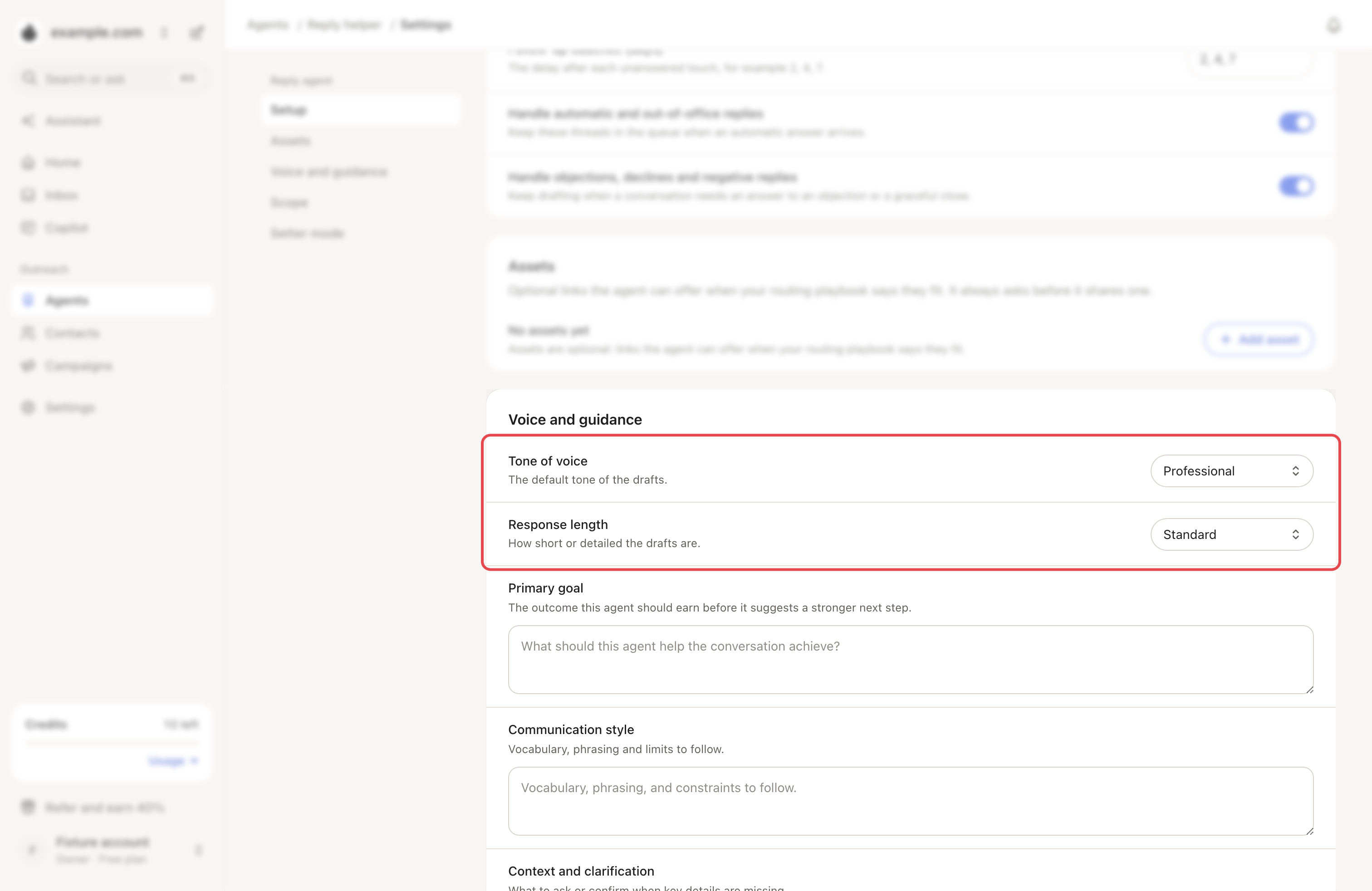
- Tone of voice: Friendly, Neutral, Matter-of-fact, Professional (the default) or Humorous.
- Response length: Concise, Standard (the default) or Thorough.
- Whether it handles follow-ups, automatic replies and objections. All three are on by default.
- Optional guidance, such as your Primary goal and Communication style.
Step 3: Choose where it drafts
On Set account and campaign scope, pick the LinkedIn accounts and campaigns it drafts for. With none picked, it covers every connected LinkedIn account and all campaigns.
Looply finishes the set-up, and the agent appears in Agents.
Step 4: Review its drafts
New drafts appear in two places:
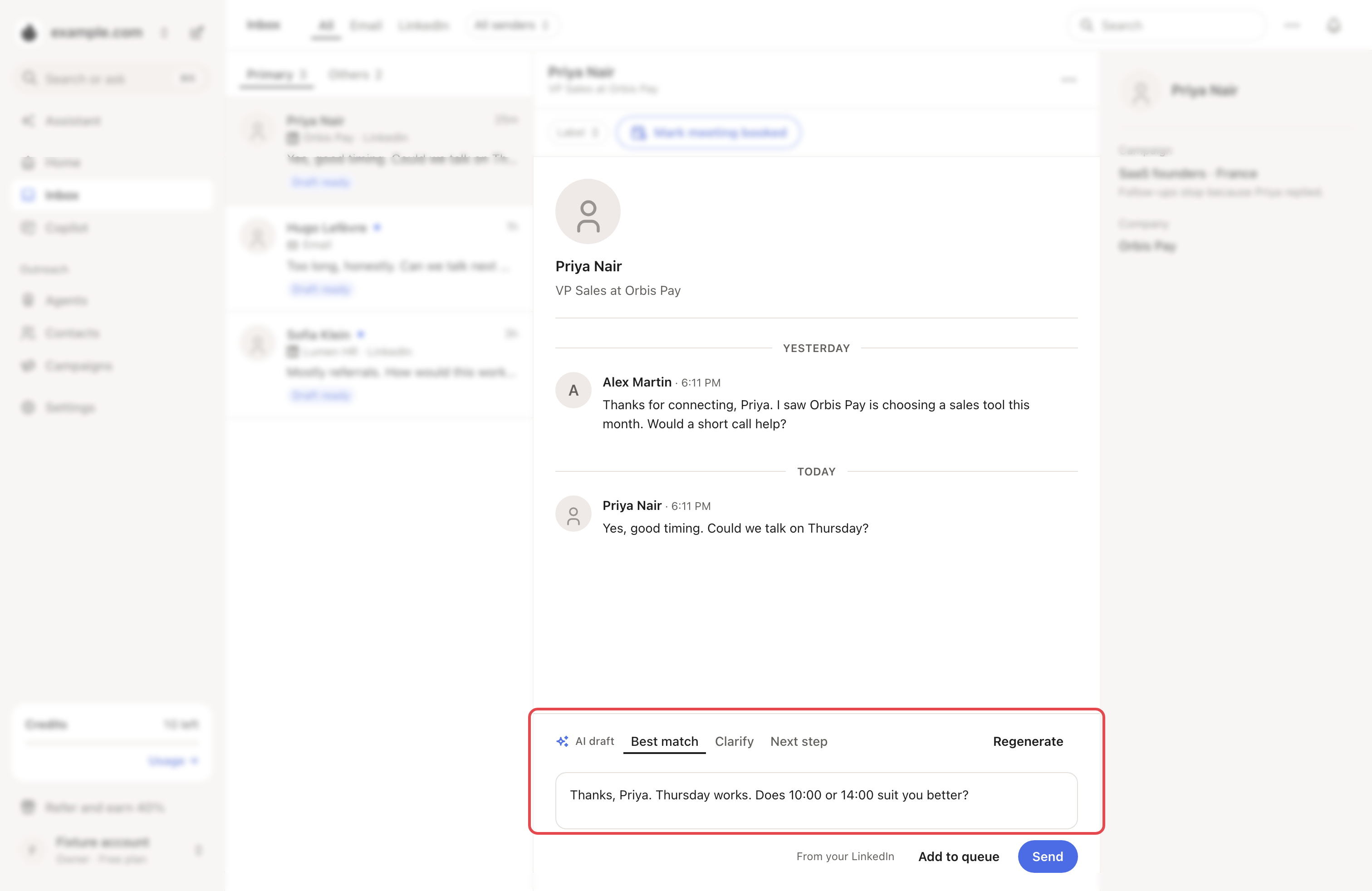
- In the Inbox, the conversation shows Draft ready. Open it to see the AI draft, in up to three versions.
- On the agent's page, under Drafts.
Edit the text if you like, then send it. Regenerate writes a fresh draft.
→ Learn more: Inbox
Change its settings
On the agent's page, click Settings. Changes save as you go.
| Part | What you set |
|---|---|
| Setup | Name, follow-ups, automatic replies, objections. Follow-ups stop after Max proactive touches (3 by default). |
| Assets | Optional links it may offer. It always asks before it shares one. |
| Voice and guidance | Tone, length, goal, style, handover and your Routing playbook. |
| Scope | LinkedIn account scope and Only some campaigns. |
| Setter mode | Off by default, in a closed rollout. When it's on, the agent replies by itself on the accounts you choose. |
What happens next
- Follow-up drafts wait for you too. The Inbox shows Follow-up scheduled or Follow-up due, and you send them yourself.
- Email replies in Primary also get an AI draft once the brand has a reply agent.
If something goes wrong
| What you see | Why | What to do |
|---|---|---|
| Reply agent setup needed in the Inbox | This brand has no reply agent. | Set one up with the steps above. |
| "No inbox conversations in scope" | Its scope has no LinkedIn account or campaign with replies. | Connect LinkedIn, or widen the scope in Settings → Scope. |
| No draft on a conversation in Others | Drafts are written for Primary conversations. | Click Generate AI draft. It moves the chat to Primary. |