Invite the people you work with to your Looply workspace. Everyone in it shares the agents, campaigns, inbox and contacts. Your workspace is named after your first brand.
What you need:
- to be the workspace's Owner or an Admin
- the email address each person signs in to Looply with
The three roles
| Role | What they can do |
|---|---|
| Owner | Billing, roles and the workspace. That's you, if you created the account. |
| Admin | Everything except billing and roles. Admins invite and remove Members, and add brands. |
| Member | Agents, campaigns, inbox and contacts. Members can't change brands, inboxes, LinkedIn accounts, integrations or AI writing settings. |
Step 1: Open Team
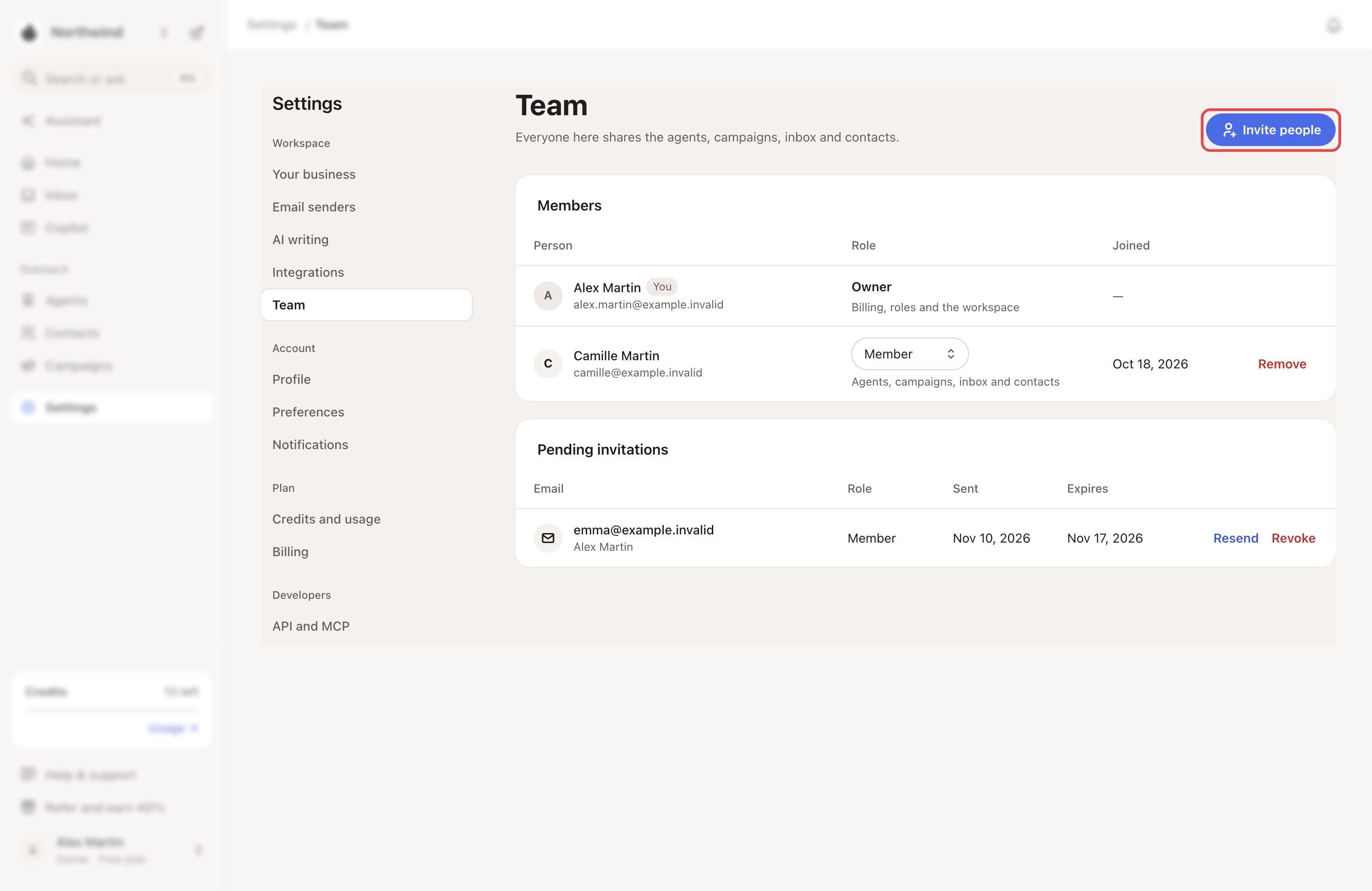
Go to Settings → Team. You see your Members and any Pending invitations.
Step 2: Send the invitation
- Click Invite people.
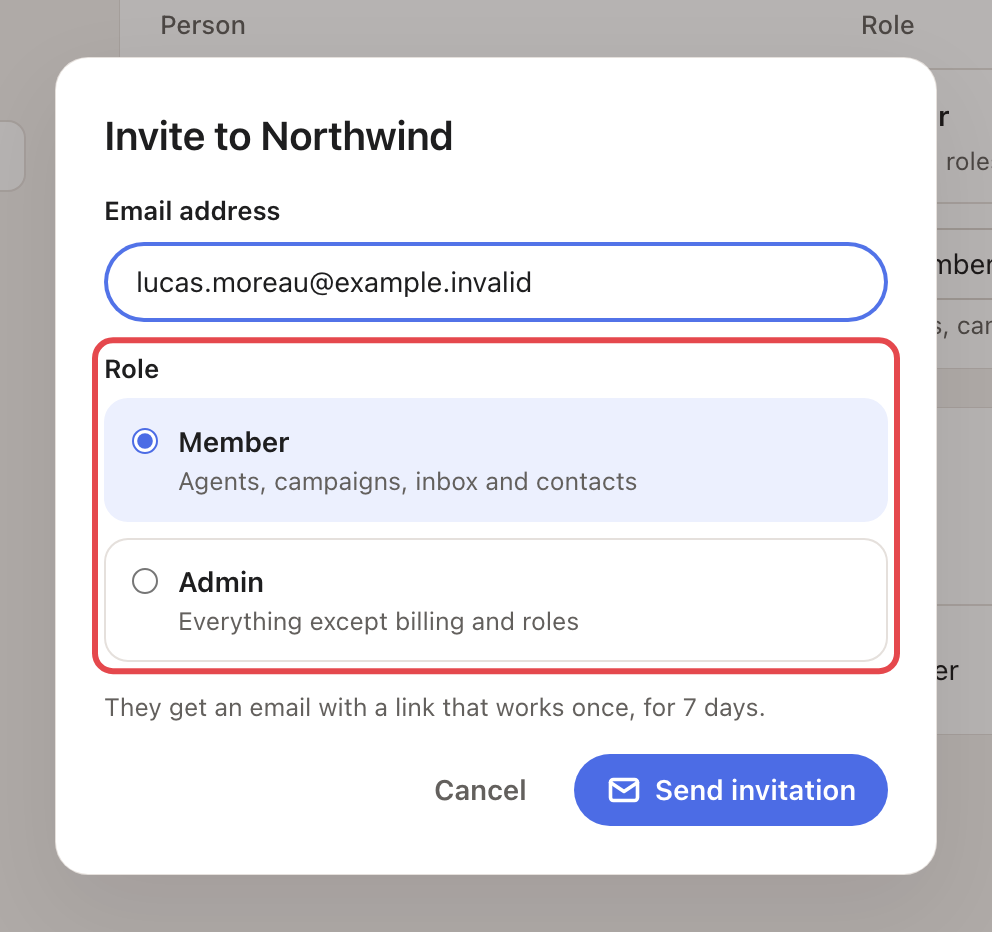
- Enter their Email address.
- Pick Member or Admin. Only the Owner can invite an Admin.
- Click Send invitation.
They get an email with a link that works once, for 7 days. Allow up to about 10 minutes for it to arrive.
Step 3: Your teammate accepts
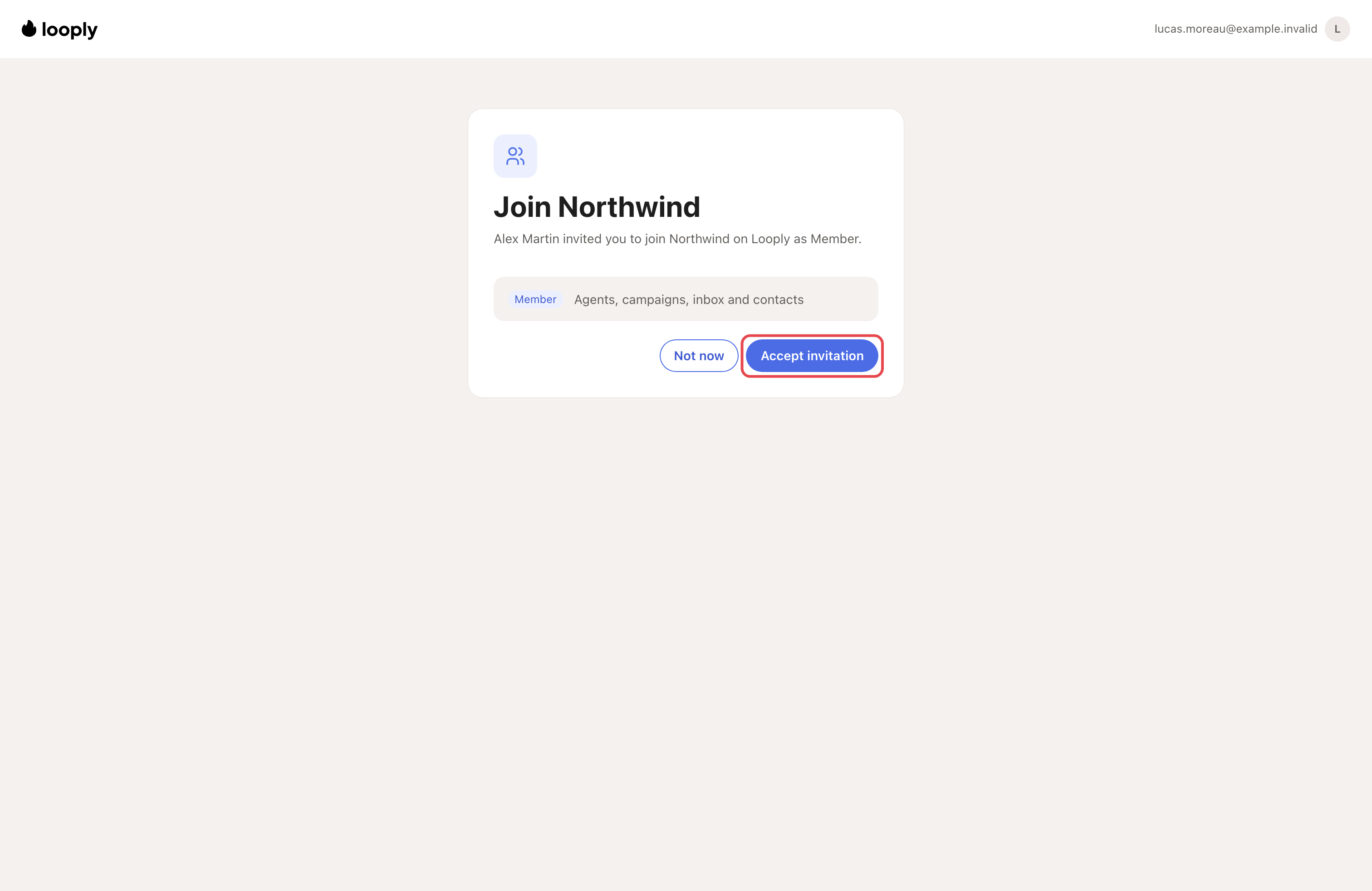
Your teammate opens the link and signs in to Looply with the invited email address. Looply shows who invited them and their role. They click Accept invitation, and your workspace opens.
Step 4: Switch between workspaces
Someone in several workspaces switches from the brand menu at the top of the sidebar. Under Workspaces, Your workspace is their own. Each team workspace shows its name.
Manage your team
- Change a role: the Owner picks Admin or Member in the Role column. On a phone, it's in the row's ⋯ menu.
- Remove someone: click Remove. They lose access right away. What they created stays. Admins can remove Members only.
- Resend sends a new link. The old link stops working. Revoke cancels an invitation. Admins can resend or revoke Member invitations only.
- Leave workspace: Admins and Members find it at the bottom of Settings → Team.
What happens next
- Your teammates work in your workspace, on your plan and its limits.
- In a team workspace, Settings → Your business and new brands are for the Owner and Admins. → Learn more: Your brands and business page
If something goes wrong
| What you see | Why | What to do |
|---|---|---|
| "This email already has a pending invitation. Resend it from the list." | You invited this address before. | Click Resend in Pending invitations. |
| "The invitation was just sent. Try again in a minute." | Resend waits one minute between emails. | Wait a minute. |
| "Too many invitations for now. Try again later." | A workspace can send 25 invitation emails an hour and keep 100 open. | Try again later, or revoke invitations nobody uses. |
| Your teammate sees "This invitation was sent to …" | They signed in with another address. | Sign out, then sign in with the invited address. |
| Your teammate sees "This invitation has expired. Ask Sam to send a new one." | 7 days have passed since Sam invited them. | Click Resend. |
| "This invitation link is not valid. Ask for a new one." | A newer invitation email replaced this link. | Use the newest email, or click Resend. |
| "This invitation was revoked." | The Owner or an Admin cancelled it. | Send a new invitation if needed. |
| "Confirm your email address first, then open this link again." | Their Looply email address isn't confirmed yet. | Confirm it, then open the link again. |
Frequently asked questions
Can I make someone else the Owner? Not from the app. Write to us from the chat.
Related articles: Your brands and business page · Plans, trial and credits