The Assistant is Looply's AI chat. Ask it about your campaigns, agents and contacts in plain words, or ask it to set something up. It works on the brand you have selected.
Step 1: Open the Assistant
Click Assistant in the sidebar, right under Search or ask. Or press ⌘K (Ctrl+K on Windows), type your question and pick Ask the Assistant. Your question then waits in the message box.
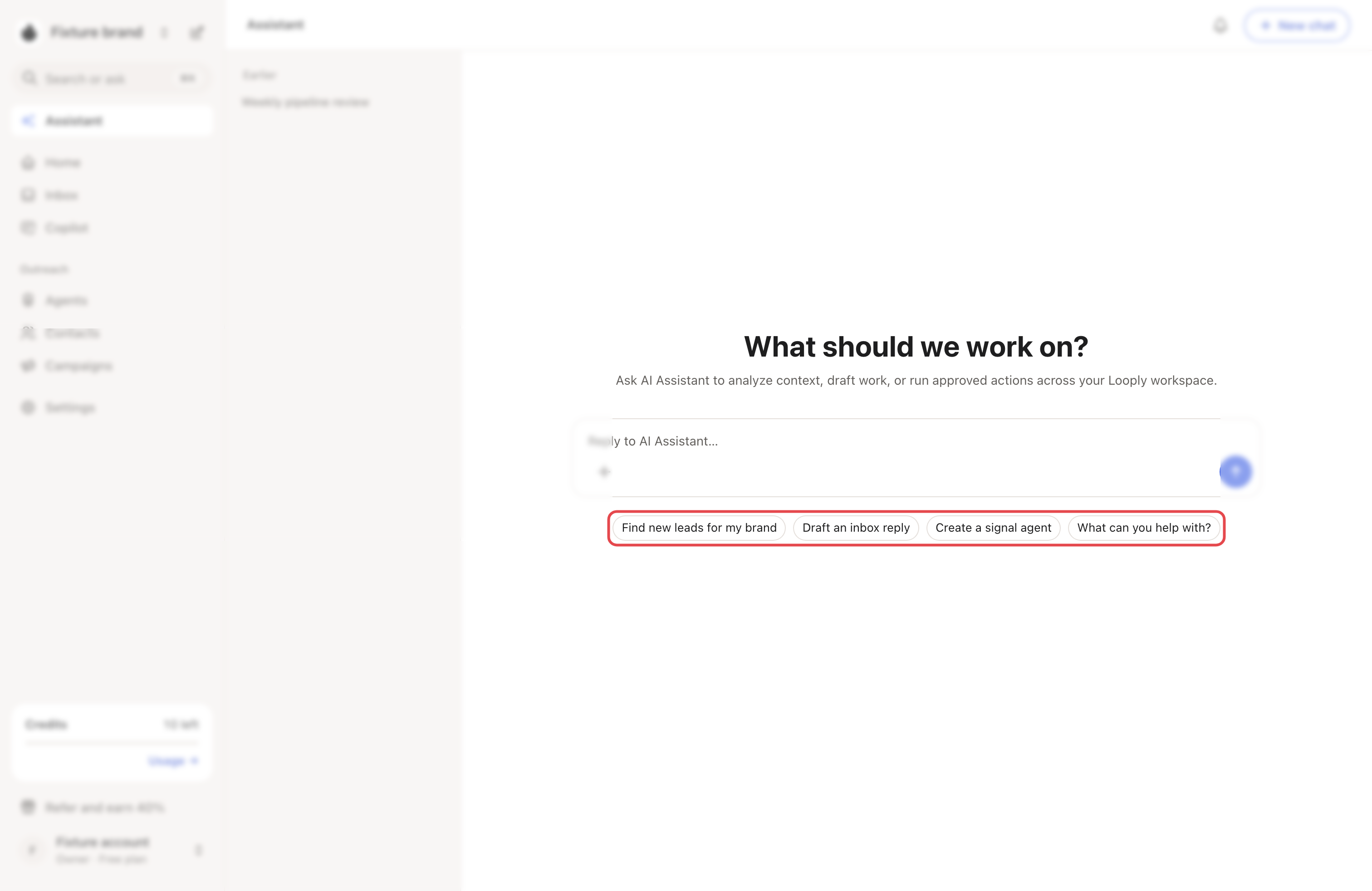
Step 2: Ask
Type your question and send it. Or start from a suggestion, such as Find new leads for my brand. The Assistant may ask you to pick an answer: choose one, or pick Other and type your own.
Your chats are saved under Past chats (History on a small screen). New chat starts a fresh one.
What it can do
| Area | What the Assistant can do |
|---|---|
| Your workspace | Read your brands, agents, campaigns and contacts. Report campaign results, such as reply rates. Say when buying-signals agents run next and what they found. |
| Research | Search the web and read public pages. |
| Agents | Create a buying-signals agent for a keyword. It goes live at once and uses an agent slot. If your brand has exactly one already, the keyword is added to it instead. Run an agent now; a paused agent turns back on. |
| Lists | Create a contact list. |
| Campaigns | Create a draft campaign, in Review mode unless you ask otherwise. Rename a draft or paused campaign, change its AI notes, or switch it between Review mode and Autopilot. |
It cannot launch a campaign or send emails and LinkedIn messages. To draft a reply to someone, open the conversation in Inbox and click Generate AI draft. The suggestion Draft an inbox reply works only from a conversation, not from the Assistant page.
Good to know: outside Plan mode, the Assistant does what you ask without checking again. A campaign it switches to Autopilot sends without your approval once it runs.
Step 3 (optional): Plan first
Click + next to the message box and turn on Plan next reply. A Plan chip shows while Plan mode is on. The Assistant then only reads and proposes. Click Approve Plan to run its plan, or Switch to Act to go back.

AI credits
The Assistant uses AI credits, a monthly allowance of their own, not the credits used to find emails. Each chat also has a limit. Emails found by an agent it runs cost credits as usual.
If something goes wrong
| What you see | Why | What to do |
|---|---|---|
| AI Credits exhausted | This month's AI credits are used up. | Wait for them to renew next cycle, or write to us from the support chat. |
| "This chat has reached its AI credit limit. Start a new chat to continue." | This chat reached its own limit. | Click New chat. |
| "AI usage is paused for this workspace. Ask your workspace owner to resume it." | The workspace owner paused AI. | Ask the owner. |
| A message about a "tool-turn limit" | The task was long. | Click Continue. |